Quantcast
Channel: Devdactic – Ionic Tutorials
Viewing all 183 articles
Browse latest View live

The Complete Guide To Images With Ionic

$
0
0

It can be a bit challenging and frustrating to handle local file URLs when working with images or media files in your app. In one of my articles I described how to capture and store images with Ionic, but there have been a lot of questions regarding saving and accessing those files later. Additional, adding local files as email attachments have been tricky for some of you as well.

This article aims to solve all those problems by providing a solid solution to all those problems:

  • we will implement the capturing of images (or taking them from your photo library)
  • we will present all the taken image in a scrollview
  • we will store those images inside localStorage to access them on future app launches
  • we will open the mail composer and add the images as attachments

At the end we will have a very simple controller for our app, and some really great reusable services for everything we need!

Getting started with a blank project

As always, I will start this tutorial at zero so you can choose where you want to join my journey. Let’s create a blank new project and add all the plugins we need for this tutorial:

ionic start devdactic-images blank
bower install --save ngCordova
cordova plugin add cordova-plugin-camera
cordova plugin add cordova-plugin-file
cordova plugin add https://github.com/katzer/cordova-plugin-email-composer.git
ionic platform add ios

We have some cordova plugins for the camera and email, and also the ngCordova wrapper. To use ngCordova, we need to load it from our index.html so make sure to add the line before the cordova.js import line. Additional we can already load our controllers.js and services.js as we will add them soon:

<!-- Before cordova.js -->
<script src="lib/ngCordova/dist/ng-cordova.js"></script>

<!-- After app.js -->
<script src="js/controllers.js"></script>
<script src="js/services.js"></script>

To finally use ngCordova add it to our dependency array inside our app.js:

angular.module('starter', ['ionic', 'ngCordova'])

We have already load our 2 additional files, now make sure to create the controllers.js and services.js files next to the app.js in your ionic project. Everything is ready now to implement some cool image functions!

Creating the view

Before we implement the actual logic, open the index.html replace the current body with these lines:

<body ng-app="starter">
  <ion-content class="has-header padding" ng-controller="ImageController">
    <button class="button button-full button-energized" ng-click="addMedia()">
      Add image
    </button>
    <button class="button button-full button-positive" ng-click="sendEmail()">
      Send mail
    </button>
    <br><br>
    <ion-scroll direction="x" style="height:200px; min-height: 200px; overflow: scroll; white-space: nowrap;">
      <img ng-repeat="image in images" ng-src="{{urlForImage(image)}}" style="height:200px; padding: 5px 5px 5px 5px;"/>
    </ion-scroll>
  </ion-conten>
</body>

Nothing special, we just got 2 buttons for adding an image and sending out an email. Additional, we got a interesting ion-scroll directive, in which our images will be displayed. By adding some custom styling here we can achieve a cool horizontal scrollview for images! If you want to add actions for opening those images in a something like a lightbox, take a look at my tutorial about How to show images fullscreen in a cool way.

Adding our image and file service

The (even more) interesting part of this tutorial starts now. To persist our captured media objects, we will have to store a reference to the file. Therefore we will use the localStorage to store a JSON array of file references. To safe and retrieve the information, we use some JSON parsing, but nothing you have to worry about. Open the blank services.js and insert this:

angular.module('starter')

.factory('FileService', function() {
  var images;
  var IMAGE_STORAGE_KEY = 'images';

  function getImages() {
    var img = window.localStorage.getItem(IMAGE_STORAGE_KEY);
    if (img) {
      images = JSON.parse(img);
    } else {
      images = [];
    }
    return images;
  };

  function addImage(img) {
    images.push(img);
    window.localStorage.setItem(IMAGE_STORAGE_KEY, JSON.stringify(images));
  };

  return {
    storeImage: addImage,
    images: getImages
  }
})

So our FileService can store an image reference and also retrieve all stored images from the storage. If you inspect the stored array, you can see something like this:
web_inspector_images
That’s enough for persisting our images across app starts. Next we add a service for our complete image functionality. You might know some of the code from my previous image tutorial, but for this one I optimised the code, reduced it by many lines and moved everything to a clean service so you can use it in your next project!

So append this to your services.js file:

.factory('ImageService', function($cordovaCamera, FileService, $q, $cordovaFile) {

  function makeid() {
    var text = '';
    var possible = 'ABCDEFGHIJKLMNOPQRSTUVWXYZabcdefghijklmnopqrstuvwxyz0123456789';

    for (var i = 0; i < 5; i++) {
      text += possible.charAt(Math.floor(Math.random() * possible.length));
    }
    return text;
  };

  function optionsForType(type) {
    var source;
    switch (type) {
      case 0:
        source = Camera.PictureSourceType.CAMERA;
        break;
      case 1:
        source = Camera.PictureSourceType.PHOTOLIBRARY;
        break;
    }
    return {
      destinationType: Camera.DestinationType.FILE_URI,
      sourceType: source,
      allowEdit: false,
      encodingType: Camera.EncodingType.JPEG,
      popoverOptions: CameraPopoverOptions,
      saveToPhotoAlbum: false
    };
  }

  function saveMedia(type) {
    return $q(function(resolve, reject) {
      var options = optionsForType(type);

      $cordovaCamera.getPicture(options).then(function(imageUrl) {
        var name = imageUrl.substr(imageUrl.lastIndexOf('/') + 1);
        var namePath = imageUrl.substr(0, imageUrl.lastIndexOf('/') + 1);
        var newName = makeid() + name;
        $cordovaFile.copyFile(namePath, name, cordova.file.dataDirectory, newName)
          .then(function(info) {
            FileService.storeImage(newName);
            resolve();
          }, function(e) {
            reject();
          });
      });
    })
  }
  return {
    handleMediaDialog: saveMedia
  }
});

Our ImageService offers exactly 1 function we can call from our controller, so this makes this service really easy to use!
When we call the handleMediaDialog function, we will receive a promise. Our service will then open the photo library or the camera, based on the type we pass to the function. The other parameters we receive from optionsForType(type) are standard, but you can experiment with them of course if you need different settings.

When we receive the media link from the cordovaCamera, we gather some substring and use the cordovaFile wrapper to move our image into our app folder. This is the part where I removed some lines which I had previously, but this wrapper makes it just too easy! Additional I add a random string to the filename by calling makeid just to make sure our file has a unique name inside our folder.

If the copy function finishes successful, we finally call FileService.storeImage(newName); which uses our FileService to add the new filename to our existing array of media names. At this point the image lies inside our app folder, we have a stored reference and can happily resolve our promise!

Connect everything with our ImageController

We got a simple view, a very clean service structure and the last thing missing is the controller to wire up everything we just coded to a useful app!

The first important function is addMedia, which will call the Ionic Action Sheet. This is a very cool and also quite native way to offer the option to choose between taking an image or selecting a file from the photo library. If the user selects an option, the addImage function will be called with the selected type.

At this point we have almost nothing to do but hide the sheet and call our service with ImageService.handleMediaDialog(type), and if the promise gets fulfilled we refresh our scope to show the new image. All of our images will get their correct path from the urlForImage function, as the relative path to our app may change on the next app start! That’s why we just need to store the filename of the image.

To get all of our images on app start, we use the ionicPlatform.ready function, in which we call our FileService for all images we have (and have stored!) and apply those changes to show them almost immediately after startup.

Add all of the following code to your app.js:

angular.module('starter')

.controller('ImageController', function($scope, $cordovaDevice, $cordovaFile, $ionicPlatform, $cordovaEmailComposer, $ionicActionSheet, ImageService, FileService) {

  $ionicPlatform.ready(function() {
    $scope.images = FileService.images();
    $scope.$apply();
  });

  $scope.urlForImage = function(imageName) {
    var trueOrigin = cordova.file.dataDirectory + imageName;
    return trueOrigin;
  }

  $scope.addMedia = function() {
    $scope.hideSheet = $ionicActionSheet.show({
      buttons: [
        { text: 'Take photo' },
        { text: 'Photo from library' }
      ],
      titleText: 'Add images',
      cancelText: 'Cancel',
      buttonClicked: function(index) {
        $scope.addImage(index);
      }
    });
  }

  $scope.addImage = function(type) {
    $scope.hideSheet();
    ImageService.handleMediaDialog(type).then(function() {
      $scope.$apply();
    });
  }
  
  $scope.sendEmail = function() {
    if ($scope.images != null && $scope.images.length > 0) {
      var mailImages = [];
      var savedImages = $scope.images;
      if ($cordovaDevice.getPlatform() == 'Android') {
        // Currently only working for one image..
        var imageUrl = $scope.urlForImage(savedImages[0]);
        var name = imageUrl.substr(imageUrl.lastIndexOf('/') + 1);
        var namePath = imageUrl.substr(0, imageUrl.lastIndexOf('/') + 1);
        $cordovaFile.copyFile(namePath, name, cordova.file.externalRootDirectory, name)
        .then(function(info) {
          mailImages.push('' + cordova.file.externalRootDirectory + name);
          $scope.openMailComposer(mailImages);
        }, function(e) {
          reject();
        });
      } else {
        for (var i = 0; i < savedImages.length; i++) {
          mailImages.push('' + $scope.urlForImage(savedImages[i]));
        }
        $scope.openMailComposer(mailImages);
      }
    }
  }

  $scope.openMailComposer = function(attachments) {
    var bodyText = '<html><h2>My Images</h2></html>';
    var email = {
        to: 'some@email.com',
        attachments: attachments,
        subject: 'Devdactic Images',
        body: bodyText,
        isHtml: true
      };

    $cordovaEmailComposer.open(email).then(null, function() {
      for (var i = 0; i < attachments.length; i++) {
        var name = attachments[i].substr(attachments[i].lastIndexOf('/') + 1);
        $cordovaFile.removeFile(cordova.file.externalRootDirectory, name);
      }
    });
  }
});

You might have noticed the last part of this tutorial: The Email functionality. Our view calls the sendEmail function which could be very easy, but Android makes our life hard. As we want to put the stored files into the email, we need to pass the path to all of the files to the cordova plugin, but apparently Android won’t take the images from the apps folder.

That’s where I introduce a tiny hack: If we are on an Android device, we copy the file (temporary) to another folder of the device which can be accessed by the email plugin. As the copy process is async and the article is already long enough, I just implemented a solution for taking the first image and call the openMailComposer once this operation is finished. If you need to send out all images, implement a function to copy all the files and resolve a promise when it’s finished so we can call the composer. If you do this, please share your knowledge in the comments below!

The final Email chooser is just like in my adding local files as email attachments tutorial, the only addition is that we try to delete the files from the image array after sending the mail out. As this takes a different folder, our image files inside the app are safe on iOS and on Android as well! It’s maybe not the best solution, but it is a solution. If you think this is a bug, open a ticket on the Email Composer Cordova Plugin!

Conclusion

It’s not very hard to handle local image URLs with Ionic, but it can get challenging at some point. This tutorial offers a solution to take, store and send out images with iOS and Android.

See a video version of this article below.

If this tutorial was helpful, follow me on twitter @schlimmson and leave a comment/ tweet it!
Make sure to subscribe to my mailing list to receive new posts and updates by mail!

So long,
Simon

The post The Complete Guide To Images With Ionic appeared first on DevDactic.


10 Awesome Resources To Learn Swift

$
0
0

Swift is the future for iOS app development. The numbers of open questions, users and available libraries for Swift are increasing, and so you should definitely increase your knowledge about this rather new programming language!

If you are an active iOS developer, you will already have written your first classes or even apps with Swift. If you are rather new to general iOS, you might be overwhelmed by Objective-C and maybe even more by Swift. But Swift has a way more clean and solid Syntax than Objective-C, so you are for sure better off with learning some Swift than anything else!

Whether already experienced or new, take a look at these 10 awesome resources and Links to learn Swift!

The order of this list is no rating, just a simple enumeration.

1. Ray Wenderlich – A Swift Quick Start Guide
Ray Wenderlich is the old dog in the iOS business. His website offers an incredible amount of useful resources for Objective-C and since some time obviously as well for Swift. You can’t make any mistake by taking a look at his Swift quick start!

2. Apple – Swift Programming Language Documentation
As Apple introduced Swift, they offer the complete documentation, including all class references and information you ever need. If you ever need to look up something, that’s the place to go. Furthermore, there are
more great Resources including videos and demo projects which help to get started.

3. Udemy – Introduction to Swift
Udemy is a platform for online courses, with great courses for all kind of topics. Many content is paid, but this one is free, so if you are a fan of those courses, this might be the perfect spot for you to start Swift or deepen your knowledge. Have you ever purchased a Udemy course? Let me know in the comments, I am very interested!

4. AppCoda – Getting Started With Swift
Another very useful resource to start with is AppCoda. But AppCoda is not limited to beginners tutorials, they offer a lot more courses and tutorials so whether you are new or experienced, there will for sure be something new on this site. They also offer many Objective-C tutorials if you still want (or have to) go with that.

5. WeHeartSwift – 100 Exercises to learn Swift
On WeHeartSwift you can find some old Objective-C tutorials, but also a comprehensive book with 100 Exercises which try to help you become a Swift master. There is no skill required, the book starts at the very beginning. If you are an intermediate you might want to skip some of the chapters though.

6. Jameson Quave – All kind of Swift tutorials
Jameson Quave offers many great tutorials for Swift. This might be a good place to look for a deeper knowledge on specific points, as there are some more specific use case based tutorials.

7. Chris Chares – Let’s Make a Swift App
The guide from Chris is a bit outdated, but the general concepts still apply. This is a good complete guide on how to make an app, so you might want to take a look at it. if you are just looking for more detailed information, you won’t found that much content than on the other ones.

8. Coding Explorer Blog – From a beginner for beginners
As Nick states, he is still a beginner and makes tutorials for beginners. He has a lot of great tutorials about all kind of things you might need to learn Swift. You should definitely bookmark this blog.

9. NSHipster – Journal of unknown bits
NSHipster is another great resource for things about Swift and Objective-C which you might not find anywhere else. They deliver a weekly article, which has surprised myself many times. Still, those articles and resources might not be targeted for beginners, so this source is more for the intermediate iOS developer!

10. Stanford University – Developing iOS 8 Apps with Swift
The podcast of the Stanford university has always been an awesome complete guide. With the rise of Swift, they now also offer a complete course to learn Swift. This might be time-consuming, but if you want to learn Swift completely with everything you need in this world, this course is the way to go. I once followed the Objective-C course and it taught me almost everything I needed to create my first app. Plus, this course is completely free!

UPDATE: 11. Hacking with Swift – Learn Swift with hands-on projects
As one of my Twitter followers mentioned, this collection of resources is really great and also a good starting point for anyone who likes to get his hands dirty very fast. Each tutorial provides code for a cool app, so you can select upfront what you need to know more about and learn how to implement it!

This list is by no means complete. If you want to submit a useful resource you found, just leave me a comment! Furthermore, you can also find a JSON parsing tutorial for Swift on my Blog, and if you wish to see more stuff like that let me know.

So long,
Simon

The post 10 Awesome Resources To Learn Swift appeared first on DevDactic.
Native Mobile Apps in JavaScript with Tabris.js

$
0
0

As you might know I’m a big fan of the Ionic Framework, and also of all hybrid frameworks which can help to create 2 apps out of 1 code base. Today I want to highlight the rather new and unknown JavaScript framework Tabris.js.

In contrast to many other hybrid frameworks, Tabris.js is no HTML5 + WebView framework, but still offers the possibility to use Javascript libraries, npm modules and Cordova plugins! I will show you the strengths, we will develop a simple app to get a feeling for the code structure and finally inspect the similarities and differences to other well known frameworks.

Sounds good? Let’s take a closer look!

Ever heard of TabrisJS?

Most of you(including me) might have never heard about Tabris.js before, as the release of the 1.0 version was only some weeks ago, and there was no big marketing event to reveal it. While there are many promising hybrid frameworks out there, I think that most of them have their strengths in special areas of the development lifecycle, that’s why I recommend to inspect different players in that area from time to time, to see which framework might fit your needs the best.

Tabris.js comes with 3 different plans (plus one organisation plan):

  • Free: Only public Github repos
  • Developer($5/mo): Public&private Github repos
  • Pro($50/mo): Public&private Github repos + local builds

These aren’t really different versions of the framework, all plans deliver the same version of Tabris.js.
For the start, a free account on their page is enough to try the basic features, I will highlight the options of the different plans later on. In general, I’m no big fan of paid frameworks.
I tend to be suspicious, as there are really great free frameworks out there for free. If you are in the enterprise context you might want to rely on a more solid framework with agreed support, which a paid plan might give you.

Anyway, the free version has everything you need, there are only differences in the workflow later, but that has no effect on the coding part.

So how do we develop with Tabris.js? In general you write your code in Javascript, but Tabris.js does not use a WebView to render the UI. Instead your code will be bridged to native code, resulting in native widgets. You will not have to deal with HTML to create views, but you will create a flexible layout wich resizes itself for the given platform and size.

Promise of Tabris.js

Every framework has some promises, stating in which areas they are the best. I already mentioned the JavaScript usage and the absence of a WebView, let’s see what we can additionally expect.

Extensibility

While there is no classic WebView, you can still use npm modules, JavaScript libraries and also Cordova plugins. This allows you to apply your existing JavaScript skills and also knowledge you might have gained while developing Cordova apps. Because you don’t have a WebView, you can only use plugins/libraries which offer functions, but nothing which needs to display some kind of UI element.
The use of Cordova plugins is especially needed when you want to access any kind of device feature like the camera or accelerometer.

Feeling

The other promise which comes along with the absence of a WebView is the increased native feeling. There are many apps on the Appstore for which you can exactly say if they were made with a hybrid HTML framework. While they get better and better, there is still a tiny(sometimes quite big) gap to a true native feeling. Furthermore, frameworks which offer a more native feeling like Appcelerator tend to have some performance issues in my eyes. There is always a little tradeoff when developing hybrid apps, even in 2015.

Building

Last but not least Tabris.js offers the possibility to build your apps online. This means you don’t need a mac to develop iOS apps and you don’t have to worry about a special SDK or whatever. Just connect your profile with your Github account and you are ready to build from a repository.
While this is handy little feature for some of us, many of us already have some kind of build server or are using a cloud build service. Anyway, if this only helps some of us, it’s still a good thing. Plus developers are lazy and fast results are always great!

Finally, the best way to decide whether a framework is worth using, is to see how it performs in action. How the code feels. How the complete development process feels. Let’s jump into the code and create a simple little Tabris.js app!

Give me code – Your first app

Our first app will be just a tiny dummy app with 2 tabs and some general available features. There are many more features and options, but for now we keep things simple – if you want to implement an advanced app, feel free to share your thoughts about it below!

As we can install Tabris.js with npm, we don’t need anything more than this package.json right now:

{
  "main": "main.js",
  "dependencies": {
    "tabris": "1.0.0"
  }
}

You can also follow the getting started guide, but creating this package.json also works for us. Navigate from the command line to the folder with the just created package.js and run npm install.

First of all create these 4 files next to the package.json: main.js, tab1.js, tab2.js, details.js.

We start with the tabbed layout, so open the main.js and insert this:

var page = tabris.create('Page', {
  title: 'My App',
  topLevel: true
});

var tabFolder = tabris.create('TabFolder', {
  layoutData: {left: 0, top: 0, right: 0, bottom: 0},
  paging: true
}).appendTo(page);

// 2 options to include our tabs
var tab1 = require('./tab1')();
tab1.appendTo(tabFolder);
// The short form
require('./tab2')().appendTo(tabFolder);

// Set the initial title
page.set('title', tab1.get('title'));

// Open the created page
page.open();

// Update the title on tab change
tabFolder.on('change:selection', function(widget, tab) {
  page.set('title', tab.get('title'));
});

First of all we have to create a page object, which will be opened in the end. After creating this object, we can append all other visual components. In our case create a new TabFolder widget, which covers the complete screen and set paging to true, which allows to swipe through the tabs like seen in many Android apps.

To create the tabs, we append to other files. This can be achieved by using the require() statement. I like this way, as it allows us to split our app/views into smaller parts, making the complete structure more easy to understand.
Finally, we listen to the change:selection event on which we update our current page title based on the tab where we are. Very straight forward so far!

Next we implement our first tab, so open the tab1.js and add this:

module.exports = function() {
  var tab = tabris.create('Tab', {
    title: 'My First Tab',
    image: {src: 'https://raw.githubusercontent.com/eclipsesource/tabris-js/master/snippets/tabfolder/images/cart.png', scale: 2}
  })

  var bacon = ['Bacon', 'ipsum', 'dolor', 'amet', 'drumstick', 'brisket', 'meatloaf', 'pork'];

  var collectionView = tabris.create('CollectionView', {
    layoutData: {left: 0, top: 0, right: 0, bottom: 0},
    items: bacon,
    itemHeight: 44,
    refreshEnabled: true,
    initializeCell: function(cell) {
      var nameTextView = tabris.create('TextView', {
        layoutData: {left: 30, top: 16, right: 30},
        alignment: 'center'
      }).appendTo(cell);

      var composite1 = tabris.create('Composite', {
        layoutData: {left: 0, bottom: 0, right: 0, height: 1},
        background: '#cfcfcf'
      }).appendTo(cell);

      cell.on('change:item', function(widget, item) {
        nameTextView.set('text', item);
      });
    }
  }).on('select', function(target, value) {
    // Push the next view onto our stack
    require('./details')(value).open();
  }).on('refresh', function() {
    // Load new data
    loadNewData();
  }).appendTo(tab);

  function loadNewData() {
    // Do your requests/loading...
    collectionView.set('refreshIndicator', false);
  }

  return tab;
};

Our complete tab is wrapped as a function. This allows us to call require(), and we receive an object of this tab. Now we create a tab instead of a page, and append all components to this tab until we finally return the tab.

The tab we create has a collectionView (also known as tableview), with some rows we take from a dummy array. The initializeCell function takes care of the setup for one cell. We add a simple textview to each cell, and also a composite which is something like a view inside our layout. In our case this view will be the bottom line of each cell.

Our collectionView can also receive 2 events. The first is the select, which is the standard tap. In that case we want to open another view, stacked like inside a navigation controller with a back button. This can be done simply by calling open() on another page object.

Additionally we allow the pull to refresh, which calls the function loadNewData. At this point you could make a request or whatever you like to update your rows, and afterwards set the refreshIndicator back to false to go back to the normal state. No messy objects or anything more to do to have a simple pull to refresh!

Now open the details.js and add this code for the detail view of a row:

module.exports = function(info) {
  var page = tabris.create('Page', {
    title: info,
    topLevel: false
  });

  var webview = tabris.create('WebView', {
    layoutData: {left: 0, top: 0, right: 0, bottom: 0},
    url: 'http://www.devdactic.com'
  }).appendTo(page);

  return page;
};

As this page should be stacked to the previous, we set the topLevel attribute to false. Also we take the info for the title from the function which creates this specific page, and add a simple webview below. It just works.

The last thing we need is the second tab. This tab shows how you can organise your view, in this case we use relative sizes with the composite we already used in our collectionView. Additional we use some other components like a textview which can also display markup style, a simple button which triggers an event for a progress view bar. So open your tab2.js and insert:

module.exports = function() {
  var tab = tabris.create('Tab', {
    title: 'My Second Tab',
    image: {src: 'https://raw.githubusercontent.com/eclipsesource/tabris-js/master/snippets/tabfolder/images/card.png', scale: 2}
  })

  tabris.create('Composite', {
    layoutData: {left: 10, top: 10, right: 10, bottom: '70%'},
    background: '#95edbe'
  }).appendTo(tab);

  tabris.create('Composite', {
    layoutData: {left: 10, top: ['30%', 10], right: 10, bottom: 10},
    background: '#94ceeb'
  }).appendTo(tab);

  var markup = '<b>Hello my Friends</b>, <i>You</i> <small>can</small><del>\'t</del> <big>do many things!</big>';

  tabris.create('TextView', {
    layoutData: {left: 20, top: 20, right: 20},
    text: markup,
    markupEnabled: true
  }).appendTo(tab);

  var progressBar = tabris.create('ProgressBar', {
    layoutData: {left: 20, right: 20, centerY: 50},
    maximum: 100,
    selection: 0
  }).appendTo(tab);

  tabris.create('Button', {
    layoutData: {left: 50, right: 50, centerY: 0},
    text: 'Add'
  }).on('select', function() {
    var selection = progressBar.get('selection') + 10;
    progressBar.set('selection', selection > 100 ? 0 : selection);
  }).appendTo(tab);

  return tab;
};

One thing you might already have seen is how elements are created: We can specify all kind of attributes, including the layout. There are some ways to organise your layout, here we used a relative layout which allows us to target all kinds of display dimensions. This is especially important when you plan to deliver your app on Android, and also the change from portrait to landscape works great this way.

On the way to this tutorial I had some problems finding a good documentation for all of the components, widgets and attributes. If you are used to big and detailed documentation, you will miss some points as there are only some examples with the final code, but no real explanation. This is a point where the team could put more work in.

So, do you want to get your app up running on your device now? Read on!

More for your pleasure

I already mentioned that the free plan includes building only from public Github repositories. As most of you will evaluate a framework based on the free version, you might think: How to deploy anything on my device without building it local? That’s where one of the strengths of this framework comes in.

Building

By signing up on their page and connecting the account to your Github account, you can create Apps completely online. This allows you to create *.ipa or *.apk files without owning a build server or even without a mac!

Still you might wonder on how to debug without having to commit&push each time. Here is another cool feature: The Tabris.js mobile app for iOS (Android: Tabris.js App).

dev-app-tabrisjs

This app is the connection between you, your Tabris.js account and your apps. If you have created an app, you can link them inside your profile and select the project from the app. The app will start and allow you to pull in a debug view. Quite nice, right?

Workflow

All of this is very handy, but for development we need a fast connection between our code and the app on the device.
The offered solution is to run a local server, which serves all of our apps files. You can do so by running these commands from your project directory:

npm install http-server -g
npm install
http-server

Now your server should be up, and all you need to do is to look inside your network preferences, find your local ip and open the tabris app on your device. Go to the URL section, and insert your URL in the format http://yourip:8080/.

Push connect and voila, there is your just created app!

This app offers a lot of options besides running apps from an URL or anything connected to your Github account. If you pull from the right (or from bottom right inside our paging enabled tabbar) you will see a complete development console. This is also the point to refresh your app. So from now, you can code, save and press refresh inside the app and your new app is on the device. This works really fast.

Tabris.js compared to…

There are many, many, many frameworks for hybrid development out there. Only a few reach a solid level like Ionic, so let’s compare Tabris.js to a framework like Ionic, and additional to the quite new React Native from Facebook. Although the last is not final yet, there is a lot of rumour around it and it’s obvious that it will get a huge fan base once it’s finally released.

Ionic Framework

Ionic is a very shiny framework, which allows you fast results which look amazing. Tabris.js does not come with all those extensions and services you get with Ionic, so you have to take care of all the styling yourself. If you plan have fancy looking app very fast, you might be better of with Ionic. Still, you can achieve the same look with a bit more work and styling with Tabris.js.

As Ionic uses HTML5 + Javascript, you have to dig into AngularJS and CSS styling of elements. This might not be the first choice for anyone, so if you rather like to not rely on AngularJS, you should take a look at Tabris.js. Here we have simple, straight forward Javascript which can be spiced up with node modules. This, again, is a very personal choice as some people love AngularJS while others will try to avoid it at every price.

The fact that Ionic runs in a webview might at some point lead to performance issues. While I haven’t built a giant Tarbis.js app yet, the native components and the promise should allow a better performance for your app. This might especially be of interest if you are working in an organisational context and need to handle something like big data.

Finally, the two have one thing in common: You can use Cordova plugins. But while Ionic is completely connected with Cordova, it feels a bit more natural to use it over there. As I added some Cordova plugins to Tabris.js I was not sure on how to connect the new added plugins with the Tabris app, so I ran into some problems. In general I used the local server and the Tabris app, but as a cordova project has a different folder structure, this was no easy going. At this point I encountered another small problem: The community.

As Tabris.js is a very new framework, the community is by now not as big as the Ionic is. This is also related to the fact that Ionic strongly relies on AngularJS which obviously has a very large fan base. Also the documentation is a bit poor in some points, so if you need specific information you might have to look twice and search the examples to find an answer. I hope that this point might get better over time with more people using Tabris.js!

Furthermore, Ionic comes with a lot of additional features like the online creator, the push notification wrapper, icons and some more. The team is working on a lot of features to make life easier for us developer. Tabris.js also offers an app and online building service, which can be nice at some point, but for the current state they are lacking some of the tools Ionic offers.

React Native

As React Native is very new and still not released completely (Android not at all), there are just some current points we can compare and expectations.

The styling and layouting with React Native is achieved by using the Flexbox layout and a rather poor copy of the web CSS styling ported to Javascript. You will for sure miss some elements here, while Tabris.js offers a general baseline to styling. There is not much said about styling for Tabris.js, so a few examples on how to get a fancy look might be appropriate. In general you make all the styling inside your Javascript, so you don’t have to learn CSS, or a CSS copy!

React Native is from the code very near to Tabris.js, as they don’t use AngularJS but React. You don’t need all the ng- special logic, and you also don’t have a webview but a virtual DOM. Still, you have to learn some ReactJS for React Native, which might also stop some people from using it. All those hybrid frameworks which need another Javascript framework might scare off some people, as you will always have to learn a new framework and keep up with the changes related to it!

Speaking of performance, React Native and Tabris.js will have a similar result. They are both not running on a webview wrapper but using native widgets. If anyone of you has some more experience on this point, I would be happy if you leave a comment, whether it’s about Tabris.js or React Native! Especially the usage in very big apps would be interesting.

React Native does not use Cordova plugins, but you can find some wrappers for those functions or easily write your own (which you can also with Cordova). If you like to work with Cordova plugins, you can stick to Tabris.js, as there is literally a plugin for everything. Allowing Cordova plugins with Tabris.js was a pretty good solution to attract more people to use it!

In point of documentation, they are quite the same, but React Native is at a very early stage, so there might be upcoming parts and examples. Also, the ReactJS community might be a bit bigger than the Tabris.js community, but for the second you can use all general Javascript tips and tricks you can find online.

Conclusion

You have seen code, the workflow system and a comparison to 2 of the currently most talked about hybrid frameworks. What’s the result? Tabris.js does perform good compared to other big players in the game! The framework is rather underrated as it’s not making that much marketing like others.

Tabris.js does not come with all the fancy stuff you might like when exploring a new framework, but it offers a solid baseline for a hybrid app. The widgets allow a very native look of your app, the performance is good and the building/workflow is quite nice for a hybrid framework (do you know AngularJS error logs? Bah.).

In the end, choosing a framework for your next app is a very personal decision. There is not one killer framework, each one has its own strengths. For Tabris.js this might by a solid architecture, the connection to Cordova and the use of pure Javascript without HTML or CSS.

If you are looking for a very straight forward framework, give Tabris.js a go!

If this tutorial was helpful, follow me on twitter @schlimmson and leave a comment/ tweet it!
Make sure to subscribe to my mailing list to receive new posts and updates by mail!

So long,
Simon

The post Native Mobile Apps in JavaScript with Tabris.js appeared first on DevDactic.

How To Easily Make Your Objective-C Code Work With React Native

$
0
0

React Native is a great framework for developing mobile applications with JavaScript and ReactJS.

But what about your existing iOS code?

In this guide I will show you how to use native Objective-C code along with JavaScript. In this way you can use existing iOS code (you might already have) inside your JavaScript code, awesome right?!

The React Native documentation is not that big by now, but there is already a part about native iOS Modules. This article presents you the complete guide on how to get started with native modules in a simple demo app. The result will be this demo app which calculates the square of a number, but all the action takes place in native Objective-C code!

rct-module-app

Start with a blank app

We will start with the boilerplate template React Native offers us. If you haven’t set up React Native or have no idea what’s it about, I recommend you take a look at my React Native getting started guide or my simple demo on setting up a Tab bar!

If you are ready, go to your command line and start a new project:

react-native init devdactic_nativeModules

As this template is already working, you can open the devdactic_nativeModules.xcodeproj and hit CMD+R to run your app in the simulator. If it’s working now, we can head on.

Remember, to the date of making this tutorial you can only build iOS apps so you will need a Mac, and I am using the version 0.4.4!

Creating a simple iOS Module

If you have never worked with Objective-C the next part might scare you a bit. But if you have been looking for help on how to include iOS modules in React Native, I guess you already have an idea what this might be about.

You can open the Xcode project inside your folder and add a new class called MyObjcClass or add 2 files to your folder: MyObjcClass.h and MyObjcClass.m. This creates the header and implementation file for our iOS Module.

Now open the MyObjcClass.h and replace the content with:

#import "RCTBridgeModule.h"

@interface MyObjcClass : NSObject <RCTBridgeModule>

@end

As you can see, we need to import the RCTBridgeModule which allows us to bridge our native code to JavaScript and additional we need to add the Protocol as well.

The guys behind React Native have created a system using macros to bridge the code, which they are not completely happy about, but it works at the moment and it’s safe for future updates. By now we are not performing any work, so open the MyObjcClass.m and replace everything inside with:

#import "MyObjcClass.h"

@implementation MyObjcClass

// The React Native bridge needs to know our module
RCT_EXPORT_MODULE()

- (NSDictionary *)constantsToExport {
  return @{@"greeting": @"Welcome to the DevDactic\n React Native Tutorial!"};
}

RCT_EXPORT_METHOD(squareMe:(int)number:(RCTResponseSenderBlock)callback) {
  callback(@[[NSNull null], [NSNumber numberWithInt:(number*number)]]);
}

@end

First of all we need to call a macro which notices the bridging module that this class should be available from our JavaScript code.

The first function is an example for how to use constants. The name of this function is fixed, so don’t change it or your code won’t work. We return a dictionary which contains a simple string, just to demonstrate the workflow.

Does the second function look scary to you?

Don’t worry, it’s easier than you think. We just need to call this export macro to export our function, just like we did with the complete class. Inside the macro we define our function squareMe which takes a number as argument and also a callback.

We need to go this way, as all those calls are asynchronous so we can’t just return a value. But no problem, we call the callback with an array consisting of 2 objects. The first is an error object which should be nil at this point, the second is the result of our very hard calculation.

Note, the same functions without the callback stuff would look like this in Objective-C:

- (NSInteger)squareMe:(int)number {
  return number*number;
}

So the system might look ugly, but in fact it’s so straight forward you will get used to this in no time. There are some more macros, but at the moment really just a fistful.

Do you want to see the same happen with Swift? Just tweet @schlimmson!

For now this is everything we need to make our Objective-C iOS Module ready for use inside our JavaScript app!

Using the bridged Code from our JavaScript app

I expect you to have a little knowledge about React Native, so let’s go ahead and implement a simple demo app.

Do you know what we would like to achieve now?

There are 2 tasks we want to perform:

  • Retrieve a constant from our Objective-C class
  • Call a function from the iOS module and show the result

Therefore, we will have 2 simple textviews and a textinput. Additional, we use the ES6 syntax so make sure to really copy everything of this to your index.ios.js or otherwise you might get some errors:

var React = require('react-native');

// 1
var {
  Component,
  AppRegistry,
  StyleSheet,
  Text,
  TextInput,
  View,
} = React;

// 2
var MyObjcClass = require('NativeModules').MyObjcClass;

class devdactic_nativeModules extends Component {
  // 3
  constructor(props) {
    super(props);
    this.state = {
      number: 0
    };
  }

  // 4
  render() {
    return (
      <View style={styles.container}>
      <Text style={styles.welcome}>
      {MyObjcClass.greeting}
      </Text>
      <TextInput style={styles.input} onChangeText={(text) => this.squareMe(text)}/>
      <Text style={styles.result}>
      {this.state.number}
      </Text>
      </View>
    );
  }

  // 5
  squareMe(num) {
    if (number == '') {
      return;
    }
    MyObjcClass.squareMe(num, (error, number) => {
      if (error) {
        console.error(error);
      } else {
        this.setState({number: number});
      }
    })
  }
};

// 6
var styles = StyleSheet.create({
  container: {
    flex: 1,
    justifyContent: 'center',
    backgroundColor: '#F5FCFF',
  },
  welcome: {
    fontSize: 20,
    textAlign: 'center',
    margin: 20,
  },
  input: {
    width: 100,
    height: 40,
    borderColor: 'red',
    borderWidth: 1,
    alignSelf: 'center'
  },
  result: {
    textAlign: 'center',
    color: '#333333',
    fontSize: 30,
    fontWeight: 'bold',
    margin: 20,
  },
});

AppRegistry.registerComponent('devdactic_nativeModules', () => devdactic_nativeModules);

There is no magic here, but let’s go through all of those points.

  • 1. First of all we extract all those components so we can use them more easy later
  • 2. This line imports our Objective-C iOS module to our JavaScript code
  • 3. Our constructor sets the initial value of the result textfield
  • 4. The render function takes care of drawing our view (or the state of our view). The first textview shall show the constant, therefore we call {MyObjcClass.greeting}. Do you remember we put the greeting inside a dictionary? Here we can just call the key to get that value.
    The TextInputField calls the squareMe function whenever we change the text, and the last view just shows the result of the calculation (initial 0)
  • 5. This function is called when we type, so we just check if there is anything inside the field and call our bridged class again. As we expect a callback, we have to wait for the result and if receive get no error we update our state variable, so the view get’s update as well!
  • 6. A bit of styling so our demo doesn’t look like a piece of shit.

If you have started your app previously you might need to start it again to load the Objective-C classes, otherwise just refresh the view (cmd+r inside the simulator) and square the hell out of your app!

See a video version of this article below, and make sure to follow my YouTube channel for more great video tutorials.

If all of this was helpful, I would be happy to see a follower more on @schlimmson and leave a comment/ tweet it!
Make sure to subscribe to my mailing list to receive new posts and updates by mail!

So long,
Simon

The post How To Easily Make Your Objective-C Code Work With React Native appeared first on DevDactic.

How To Pick The best Javascript Framework For Your Needs

$
0
0

Picking the right Javascript framework at the beginning of a project can be as hard as picking a name for your new WoW character. There are a lot of pros & cons you should consider, and sometimes it get’s even harder if you have a lot of uncertain elements in your project plan.

There are a ton of great Javascript frameworks out there, and with every day we see a new one sprouting.

So how to decide what’s the right framework for your case?

There are some general points you could consider as a rating:

  • Size of the community and contributions, modules
  • Trend on Google or Stackoverflow questions
  • Publications, tutorials and Youtube videos

Those points, however, do not inevitable have to lead you to the framework which fits your needs. If you would just follow those points, you might even end up with Java.

What else can be considered?

Some more development related topics you should take a look at are:

  • Size of the packaged framework
  • Syntax and system of the templating
  • Basic Design Pattern (currently often MV*)

Those points have also been considered in a great article comparing AngularJS vs. Backbone.js vs. Ember.js

Do I still have to consider more?

Yes, finally you should also always take a look at the project & personal related topics:

  • Previous experience with a framework
  • Learning curve (maybe even given your background!)
  • Speed of the application
  • Future releases, migration path and support for older versions

There are still more factors, but at some point you have to stop the planning. Why?

You can’t plan forever!

In the end it’s a mix of all of those points, plus a lot of your own opinion and how you feel about using this or that Javascript framework. It might even come to a strategical decision if you are working in an enterprise business, as a big project might require many people to learn a new framework.

Learning a Javascript framework for just one project is a waste of time!

So always consider every fact, and gather all the information you can. Changing to a different javascript framework when you have already started developing will be a pain in the ass and cost you a lot of time and money!

What’s your opinion about this topic?

How do you pick a Javascript framework? Did you ever have to re-evaluate everything while you had already started a project?

Let me know your preferences and what you consider!

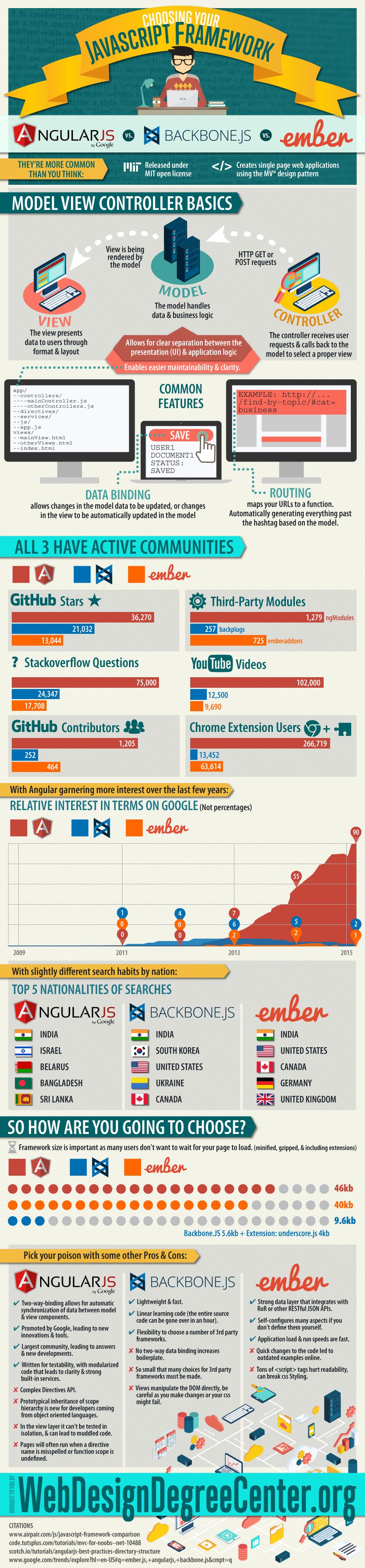
I found a pretty cool graphic showing you a lot of information about 3 of the best known JavaScript frameworks out there: AngularJS, Backbone.js and Ember.

Choosing a Javascript Framework
Source: WebDesignDegreeCenter.org

Watch out

This graphic shows some factors to consider, but there is always more you should give some credit. Besides, the graphic is missing React.js which has to be on your list of top frameworks as well!

Picking a JavaScript framework for a project depends on various input variables. Most of the time you won’t find the frameworks of your dreams, but with the right approach you can get the best fit for a specific project.

If you like this guide, follow me on twitter @schlimmson and leave a comment/ tweet it! Make sure to subscribe to my mailing list to receive new posts and updates by mail!

So long,
Simon

The post How To Pick The best Javascript Framework For Your Needs appeared first on DevDactic.

Easy Ionic Push Notifications With Ionic.io In 15 Minutes

$
0
0

Everyone uses push notifications.
Not you?

Well, you are lucky as Ionic helps us to include push notifications in our hybrid apps in absolutely no time. Follow my tutorial to include Ionic push notifications as fast and easy as possible! You will be surprised how fast it is.

Some time ago I had a guest post from Nic about Using Local Notifications In Your Ionic Framework App, and those are great. but those are only local notifications, so this time we will look at how real push notifications can be implemented very easy. We will create a simple starter project and the Ionic.io service for Ionic push notifications.

Setting up a blank push project

As always, let’s start with a clean blank Ionic project, so go to your command line and run:

ionic start devdactic-push blank
cd devdactic-push
ionic upload

Did you notice the ionic upload?

This is our first interaction with the Ionic.io service. If you have no account yet, you can create one for free, you will need this to continue.

This service allows you to upload your apps, distribute them, view them with the Ionic View App and last but not least, integrate Ionic push notifications.

If you have the account, the upload command will ask for your credentials and upload the app.

Next we need some more Cordova plugins and other services from Ionic, so inside your project directory run these commands:

ionic plugin add https://github.com/phonegap-build/PushPlugin.git
ionic add ngCordova
ionic add ionic-service-core
ionic add ionic-service-push
ionic add angular-websocket

If everything is installed, open your index.html and load all the just installed fails below your ionic.bundle.js:

<script src="lib/angular-websocket/angular-websocket.js"></script>
<script src="lib/ngCordova/dist/ng-cordova.js"></script>
<script src="lib/ionic-service-core/ionic-core.js"></script>
<script src="lib/ionic-service-push/ionic-push.js"></script>

The last change for those services is now to include them inside our angular module, so open the app.js and change your module dependency array to this:

angular.module('starter', [
  'ionic',
  'ngCordova',
  'ionic.service.core',
  'ionic.service.push'
])

Are you ready for some Ionic push notfication action?

Basic App Identification Settings

The first thing we need to add Ionic push notifications is to identify our app on startup with the Ionic.io service. Open your app.js and add this part after the angular module declaration:

.config(['$ionicAppProvider', function($ionicAppProvider) {
  $ionicAppProvider.identify({
    app_id: 'INSERT_APP_ID',
    api_key: 'INSERT_PUBLIC_KEY',
    dev_push: true
  });
}])

Where do I get those keys from?

That would be the correct question right now. As you have uploaded your app in the first step of creating this project, you can find all the information you need in your Ionic.io Apps Dashboard. Your dashboard should look something like this (maybe you have more apps, but the one should be there):
ionic-apps-dashboard

Now first of all you need the app-id which is the one right on your app card. Copy and paste that one to your app.js where currently the placeholder INSERT_APP_ID is.

Additional we need the Ionic push notifications API key, so in your dashboard select the app, in the new appearing menu go to Settings -> Keys and copy your Public Key. Insert this key to the INSERT_PUBLIC_KEY placeholder. Good job!

You might have also noticed the dev_push: true key. This one sets our app to development mode, because we will start with a simple test notification. Setting up production notifications for iOS and Android is a bit harder because it includes some more steps.

If you want a tutorial about iOS and Android production notifications, just let me know!

Ionic Push Notifications in Action

We can almost see the finish line…but before we need to take care of the real coding. Open your index.html and replace everything inside the body with this simple view:

<body ng-app="starter" ng-controller="PushCtrl">
  <ion-pane>
    <ion-content>
      
      <button class="button button-block button-dark" ng-click="identifyUser()">
        Identify a user
      </button>

      <button class="button button-block button-positive" ng-if="identified" ng-click="pushRegister()">
        Register for Push
      </button>

    </ion-content>
  </ion-pane>
</body>

We need 2 buttons as we first of all need to identify the current user, and if this action is done we need to register for a push notification.

Let’s add a simple controller with all the dependencies we need to our app.js:

.controller('PushCtrl', function($scope, $rootScope, $ionicUser, $ionicPush) {});

Quite some dependencies, but we will use all of them in the next steps. As I said before, we need to identify the user so inside our controller add this function which is assigned to our first button:

$scope.identifyUser = function() {
	var user = $ionicUser.get();
	if(!user.user_id) {
		// Set your user_id here, or generate a random one.
		user.user_id = $ionicUser.generateGUID();
	};

	// Metadata
	angular.extend(user, {
		name: 'Simon',
		bio: 'Author of Devdactic'
	});

	// Identify your user with the Ionic User Service
	$ionicUser.identify(user).then(function(){
		$scope.identified = true;
		console.log('Identified user ' + user.name + '\n ID ' + user.user_id);
	});
};

In general, we create a random user id, and call the $ionicUser service to identify the current user. The metadata is not mandatory here, but it’s always good to include it. Now we are able to register for push notifications!

Add the next function to our controller, which will register our device for push notifications:

// Registers a device for push notifications
$scope.pushRegister = function() {
 console.log('Ionic Push: Registering user');

 // Register with the Ionic Push service.  All parameters are optional.
 $ionicPush.register({
   canShowAlert: true, //Can pushes show an alert on your screen?
   canSetBadge: true, //Can pushes update app icon badges?
   canPlaySound: true, //Can notifications play a sound?
   canRunActionsOnWake: true, //Can run actions outside the app,
   onNotification: function(notification) {
     // Handle new push notifications here
     return true;
   }
 });
};

You can change some of the parameters, but as we are using development notifications which are a bit different to real native notifications, this makes no big difference. We are now ready to receive them, but to test them we need the device id, which we can get from the register callback, so also append this code to our controller:

$rootScope.$on('$cordovaPush:tokenReceived', function(event, data) {
  alert("Successfully registered token " + data.token);
  console.log('Ionic Push: Got token ', data.token, data.platform);
  $scope.token = data.token;
});

Now we will see the log of our device on the console. Try it!

Serve your app in the browser or on the device, and make sure to get the logs as you need this. Right now this is just the ability to receive notifications.

How do I send out notifications?

Ionic wouldn’t be Ionic if there was no simple solution. Go to your CLI and run

ionic push -s

This will ask for some parameters, so paste what it needs. Make sure to take the Private API Key from your Ionic.io dashboard keys setting, I tried this with the public key for about 2 hours until I realised it.
If you have inserted everything correct, you should see a notification, appearing like magic, which will look something similar to this:

ionic-push-notification

Conclusion

Congratulations on setting up Ionic push notifications, the most easy way I can think of to add push notifications to your hybrid app. If you want to read a further tutorial about iOS and Android integration, just leave me a comment below!

See a video version of this article below, and make sure to follow my YouTube channel for more great video tutorials.

If all of this was helpful, I would be happy to see a follower more on @schlimmson and leave a comment/ tweet it!
Make sure to subscribe to my mailing list to receive new posts and updates by mail!

So long,
Simon

The post Easy Ionic Push Notifications With Ionic.io In 15 Minutes appeared first on DevDactic.

How To Create An Advanced Ionic Gallery with Image Zooming

$
0
0

Presenting images in whatever form you like is a standard job inside an app. If you want to create an image gallery, things get a bit tougher. Additional, if you want image zooming inside your standard gallery view, your head might explode without the proper knowledge.

Let me present you an easy way how to show an image gallery like in the Facebook app, with additional image zooming functionality for every picture while staying inside your carousel!

Are you presenting images inside your app?

In a previous article I explained How To Display Images and Videos with Ionic Really Cool, which has been attracted a lot of people. Additionally you asked how to zoom those images, which is a bit tricky. Let me show you how to create a great such a great looking image gallery!

Setup the base app and create our initial view

First, let’s start a blank project so we can include everything one by one:

ionic start devdactic-galleryZoom blank

Inside the just created app, open the index.html and replace the body with this:

<body ng-app="starter">
    
    <ion-pane>
      <ion-header-bar class="bar-stable">
        <h1 class="title">Devdactic Image Gallery</h1>
      </ion-header-bar>
      <ion-content class="has-header padding" ng-controller="GalleryCtrl">
        <br><br>
        
        <div class="item item-divider">
          <i class="ion-images"></i>
          My Images
        </div>
        
        <a class="item item-list-detail">
          <ion-scroll direction="x">
            <img ng-repeat="image in allImages" ng-src="{{image.src}}" ng-click="showImages($index)" class="image-list-thumb"/>
          </ion-scroll>
        </a>
        
      </ion-content>
    </ion-pane>
  </body>

Does this look familiar to you?

If you have followed my previous tutorial, this should be. In general we just have a clean UI with a card, displaying our image thumbnails inside a horizontal scrollview. Every image inside our ng-repeat has a click event which will trigger a function in our controller, passing the index of the selected image.

Adding the Gallery Controller and a modal template

Our controller is already assigned, let’s create it. Open the app.js and add:

.controller('GalleryCtrl', function($scope, $ionicBackdrop, $ionicModal, $ionicSlideBoxDelegate, $ionicScrollDelegate) {

  $scope.allImages = [{
    src: 'img/pic1.jpg'
  }, {
    src: 'img/pic2.jpg'
  }, {
    src: 'img/pic3.jpg'
  }];

  $scope.zoomMin = 1;
  
});

The images array takes 3 pictures from our img/ folder and we have scope variable for our minimum zoom level, which we will need in the later steps.

BONUS
Get the complete Ionic project with Gallery and Image Zooming ready to run!


Let’s continue with our popover. Once a user taps on one of those thumbnail images, we want to show an ionicModal above our current content, with a dark transparent background. We will load this view from a template, so inside your www/ folder create a file at templates/gallery-zoomview.html and insert this:

<div class="modal image-modal transparent" on-swipe-down="closeModal()">
  <ion-slide-box on-slide-changed="slideChanged(index)" active-slide="activeSlide">
    <ion-slide ng-repeat="image in allImages">

      <ion-scroll direction="xy" scrollbar-x="false" scrollbar-y="false"
      zooming="true" min-zoom="{{zoomMin}}" style="width: 100%; height: 100%"
      delegate-handle="scrollHandle{{$index}}" on-scroll="updateSlideStatus(activeSlide)" on-release="updateSlideStatus(activeSlide)">

      <div class="image" style="background-image: url( {{image.src}} )"></div>
      
    </ion-scroll>
  </ion-slide>
</ion-slide-box>
</div>

This template view will be filled with our images, and has a lot of Ionic stuff going on there! Take a look at everything, from outside to inside:

  • The outer div is a wrapper for our modal view with some background styling
  • ion-slide-box holds our views which can be swiped horizontal (ion-slide-box documentation)
  • One ion-slide represents one view with an image zooming area
  • The ion-scroll manages our view behaviour for one image
  • The current image object of this slide view from our scope array plus styling

The slidebox and slides are pretty straight forward and also explained in my previous article about Images with Ionic.

New this time: the ion-scroll!
This directive handles a lot inside our modal, in fact everything related to our image zooming function. The important part is, that we only want to do one action at a time: Scroll the Gallery or Zoom.

This is the same behaviour as seen in the Facebook app, because otherwise things get really weird. Images move inside their view while their container moves (at best) or worse things can happen. So we have to take care of 2 important aspects:

  • 1. Assign a specific delegate-handle to each scrollview -> scrollHandle{{$index}}
  • 2. Catch the on-scroll event and check if we allow or forbid gallery scrolling

When we correctly use those 2 aspects, we can get a great result, trust me. But before the magic happens, we need to take care of something else.

There will be dragons

So you put a directive inside a directive so you can… DAFACK?

As if having all of those Ionic directives nested wouldn’t be enough, we need some CSS to get the desired result. Therefore open your style.css and insert:

.image-list-thumb {
    padding: 2px 2px 2px 2px;
    height: 150px;
}

.image-modal {
    width: 100% !important;
    height: 100%;
    top: 0 !important;
    left: 0 !important;
}

.transparent {
  background: rgba(0,0,0,0.7);
}

.slider {
    width: 100%;
    height: 100%;
}

.image {
    width: 100%;
    height: 600px;
    background-size: contain;
    background-repeat: no-repeat;
    background-position: center, center;
}

There is no magic inside, and this comes from a not very talented CSS guy. We just have to fiddle out some correct sizes as we would otherwise have not the centered image, taking the complete width and so on. Also I made the background of the modal to a 0.7 transparent black, the standard is pure white, but I like to see the app below. Just change those values to fit your needs!

Finally, we come back to our scrollview delegate methods. The first 3 functions of this code are mandatory for opening and closing our modal template, the last one handles our image zooming and scrolling problem, so open the app.js again and add inside our controller:

$scope.showImages = function(index) {
  $scope.activeSlide = index;
  $scope.showModal('templates/gallery-zoomview.html');
};

$scope.showModal = function(templateUrl) {
  $ionicModal.fromTemplateUrl(templateUrl, {
    scope: $scope
  }).then(function(modal) {
    $scope.modal = modal;
    $scope.modal.show();
  });
}

$scope.closeModal = function() {
  $scope.modal.hide();
  $scope.modal.remove()
};

$scope.updateSlideStatus = function(slide) {
  var zoomFactor = $ionicScrollDelegate.$getByHandle('scrollHandle' + slide).getScrollPosition().zoom;
  if (zoomFactor == $scope.zoomMin) {
    $ionicSlideBoxDelegate.enableSlide(true);
  } else {
    $ionicSlideBoxDelegate.enableSlide(false);
  }
};

What is going on onScroll?

Whenever the user scrolls our scrollview (which would be better called zoomView here), the updateSlideStatus function is called. This function will get a handle to the correct scrollview by using the parameter passed from the function, and afterwards get the current zoom level.

If this zoom level is equal to our initial defined zoomlevel, we are sure we are completely zoomed out so we can enableSlide for our ion-slide-box!

If this is not the case, meaning we are somewhere zoomed in, we don’t want to allow sliding our gallery and turn the function off by using the ionicSlideBoxDelegate. That’s all!

I recommend to test your app on the simulator or a real device, as the pinch to zoom function is not working in the browser. Depending on your images, the result should look like this (watch the movie for some moving pictures):

 image-zooming

BONUS
Get the complete Ionic project with Gallery and Image Zooming ready to run!


See a video version of this article below, and make sure to follow my YouTube channel for more great video tutorials.

If this tutorial was helpful, I would be happy to see a follower more on @schlimmson and leave a comment!

So long,
Simon

The post How To Create An Advanced Ionic Gallery with Image Zooming appeared first on DevDactic.

The 10 Best Resources To Get Started With React Native

$
0
0

You want to get your hands dirty with some React Native? In a recent article I gave an easy introduction to React Native, this time I will show you the in my eyes 10 best resources out there to get started with React Native.

This list is not complete, but it contains everything to improver your React Native skill. And it’s no rating, just a simple list to help you!

Have you found any other great resource?
Let me know and I will update this list to get even more awesome.

1. Facebook – Introducing React Native

Whether you are a complete beginner or looking for are solid background for your knowledge – the official keynote is a great way to learn some basic concepts and why Facebook built React Native. Definitely a must watch for everyone interested!


2. Facebook – Official React Native documentation

If you are looking for a complete overview what’s already possible, go for this. The official documentation covers everything you need for a complete app, including all the special cases you might not find in the regular tutorials. Also the place to look up something in case you are not sure how to use a specific component.


3. Appcoda – React Native Introduction

Appcoda delivers a great tutorial from the installation of React Native to building a real app with cool features and components. If you have no or very less experience, this is definitely one of the right places to start. After this tutorial you will have a pretty decent understanding how React Native works and be able to build your first own app.


4. Ray Wenderlich – Introduction to Apps with JavaScript

You might have heard of Ray Wenderlich, the guy with the awesome iOS tutorials. But this time it’s not about native iOS, this time it’s a complete example for a React Native iOS app including fetching data from an API. This tutorial was featured all over the web and is heavily recommended for everyone interested. Especially the data loading part will come in handy for many of you, as this is a day to day task.

5. Modus Create – React Native Has Landed

This one combines tutorial style and a bit more of knowledge and opinion about React Native. The guys show a bit of code, and how they felt using it for some weeks. If you are looking for some true words and how it’s performing in a real world, a very good read!


6. Herman Schaaf – Building a flashcard game

This one describes the process of building a simple game. It’s a cool article as it covers many things you might want to know more about: Styling, using a Database, bridging native modules and finally problems related to submitting that app. Definitely give this one a look if you plan to develop a React Native app.


7. Colin Eberhardt – React Native Retrospective

This article is from the creator of the Ray Wenderlich introduction, so this guy knows what he’s talking about. It’s not about code here, but the true opinion about the usage of React Native from a high skilled developer is priceless. Whether you just want a detailed review or a collection of the pros and cons, this special article is a must read for everyone interested!


8. ReactNative – Collection of Resources

If you haven’t found what you are looking for you might want to give this platform a look at, chances are good you will find something you need. This is a place of tutorials, links, books, RSS feeds and so on. If you want to stay up-to-date, make sure to sign up for the newsletter!


9. Red Badger – Killer Features

A bit different perspective on React Native, highlighting the true value of this framework: ReactJS. Everyone is excited about the new possibilities and how Facebook managed to open source this project, but Robbie shares some thoughts about the things you should really value. Very interesting article, for beginners as well as for old ReactJS pros!


10. React Parts – All the components you need

If you managed to read until this point, I guess you already have started with React Native. If so, this site offers a complete search for components you might miss or need at the moment. It also includes web components, so if you are already developing ReactJS web apps, this comes in double-handy. Definitely bookmark this page for further searches!


If you want more of this and like this, I would be happy to see a follower more on @schlimmson and don’t forget to leave a comment!

So long,
Simon

The post The 10 Best Resources To Get Started With React Native appeared first on DevDactic.


How To Easily Use The Twitter REST Api With AngularJS

$
0
0

The Twitter REST Api is quite well documented, still there are many problems how to to call the routes, how to authenticate and in general how to use it. I wanted to simplify the Twitter integration, so I created a AngularJS library acting as a wrapper: ngTwitter.

Some time ago I had a post on the official Ionic blog on Displaying the Twitter Feed within Your Ionic App where everything had to be done by yourself. Now with ngTwitter you only need to call it once with your Consumer Key, your Consumer Secret and a valid OAuth token.

If ngTwitter is configured, you can use the wrapper methods to get the Twitter REST response and don’t have to worry about any more authentication or request signing!

In this tutorial I will show you how to use ngTwitter to access the Twitter REST Api, especially we will grab the home timeline and make a post.

As I am a big Ionic fan, I will use a simple Ionic Framework project as base for this tutorial. To grab the OAuth token I will use ngCordova which is a wrapper for cordova plugins. You can use ngTwitter in any AngularJS app, just maker sure you configure it with the keys and token and everything should work!

BONUS
Get the complete Ionic project with ngTwitter integration ready to run!


Setup an Ionic demo project

We start with a blank Ionic project and install ngTwitter and ngCordova with bower. If you have no experience with the Ionic Framework, I recommend to take a look at my course How To Create Apps With The Ionic Framework!

ionic start devdactic-twitter blank
cd devdactic-twitter
bower install ng-twitter-api --save
bower install ngCordova#master --save

At the time of writing this post we have to take the master branch of ngCordova, as there are critical changes regarding a cordova update.

After installing the libraries we also need 2 plugins which will help us to display the social login in our app. This is only needed for our example, not if you use ngTwitter outside of Ionic.

cordova plugin add https://git-wip-us.apache.org/repos/asf/cordova-plugin-inappbrowser.git
cordova plugin add cordova-plugin-whitelist

To sign our request we nee the help of the jsSHA library. Please use the tag 1.6 as version 2.0 is currently not working with the Twitter REST Api! Download the project and copy the sha1.js file to your www/lib folder.

After we have all the files inside our project, open the index.html and load all those files before the cordova import line!

<script src="lib/ngCordova/dist/ng-cordova.js"></script>
<script src="lib/ng-twitter-api/dist/ng-twitter-api.min.js"></script>
<script src="lib/sha1.js"></script>

Finally, we have to add the dependencies to our Angular module, so open the app.js and append ngCordova and ngTwitter to the array:

angular.module('starter', ['ionic', 'ngCordova', 'ngTwitter'])

Our app is now ready to connect with Twitter. The last thing we must do is to create an app on Twitter that will give us the credentials we need. Go to the Twitter Application Management page and create a simple app.

After creation, we need to change the callback URL of our Twitter app to http://localhost/callback. As this is currently not possible via Twitter, make yourself a tiny URL, and insert that one instead.
Leave the created app for now; we will need to copy some keys from it in a later step.

Creating our Timeline view

Our app is empty, so let’s change that. We want to have a timeline like you might know from the Twitter app, plus a short text input field to submit a tweet. The view is not very special, so replace the body of your index.html with everything below:

<body ng-app="starter" ng-controller='AppCtrl'>
  <ion-pane>
    <ion-header-bar class="bar-positive">
      <h1 class="title">My Twitter Feed</h1>
    </ion-header-bar>
    <ion-content class="has-header padding">
      <div class="list">
        <div class="item item-input-inset">
          <label class="item-input-wrapper">
            <input type="text" placeholder="My tweet..." ng-model="tweet.message" ng-maxlength="140">
          </label>
          <button class="button button-small" ng-click="submitTweet()">
            Tweet
          </button>
        </div>
      </div>
      <ion-refresher on-refresh="doRefresh()"></ion-refresher>

      <div ng-show="home_timeline.length == 0">Loading tweets...</div>

      <div ng-repeat="entry in home_timeline" class="list card">
        <div class="item item-avatar">
          <img ng-src="{{entry.user.profile_image_url}}"/>
          <h2>{{entry.user.name}}</h2>
          <p>{{correctTimestring(entry.created_at) | date:'medium'}}</p>
        </div>

        <div class="item item-body">
          <p ng-bind-html="entry.text"></p>
          <img ng-if="entry.extended_entities" ng-src="{{ entry.extended_entities.media[0].media_url }}" style="width: 100%;"/>
        </div>

      </div>
    </ion-content>
  </ion-pane>
</body>

Our input field is connected to a scope variable and will call submitTweet() when we click on Tweet.

At the top we also have a pull-to-refresh so we can manually update our timeline whenever we want to. Our ng-repeat will take the information from our scope variable home_timeline, which we will fill in our AppCtrl.

The tweets are displayed in very simple cards. The Twitter response contains a lot more data, but that’s up to you and how you need it, so here just a simple demo. If you got any questions regarding the view, just leave a comment below!

Now we just need to perform the real work so we can finally see Twitter stuff inside our own app!

Calling the Twitter REST api with ngTwitter

We have already assigned a controller to our body, so now we need to finally implement it.Open the app.js and add a simple (currently empty) controller:

.controller('AppCtrl', function($scope, $ionicPlatform, $twitterApi, $cordovaOauth) {});

We will use $ionicPlatform to automatically open the social login on app start, and $cordovaOauth for grabbing the needed OAuth token. The dependency $twitterApi is from the ngTwitter library.

At this point you need your personal Consumer and Consumer Secret Key from the Twitter app you created in the setup step. Insert the code below in your just created controller and insert your keys:

var twitterKey = 'STORAGE.TWITTER.KEY';
var clientId = 'yourConsumerKey';
var clientSecret = 'yourConsumerSecretKey';
var myToken = '';

$scope.tweet = {};

$ionicPlatform.ready(function() {
  myToken = JSON.parse(window.localStorage.getItem(twitterKey));
  if (myToken === '' || myToken === null) {
    $cordovaOauth.twitter(clientId, clientSecret).then(function (succ) {
      myToken = succ;
      window.localStorage.setItem(twitterKey, JSON.stringify(succ));
      $twitterApi.configure(clientId, clientSecret, succ);
      $scope.showHomeTimeline();
    }, function(error) {
      console.log(error);
    });
  } else {
    $twitterApi.configure(clientId, clientSecret, myToken);
    $scope.showHomeTimeline();
  }
});

The point here is to check if we already have a OAuth token stored. If we don’t have, we need to validate the user so we can get one. At this point we call the $twitterApi.configure to set up the library for our use. Finally, we call our showHomeTimeline function to update the view.

As I wanted ngTwitter to be as simple as possible, there is not very much we have to do now. Receiving the timeline data is a simple call and submitting our input field as a new Tweet is also just one call.

Additional we need our refresh function which is called from our pull-to-refresh, and a helper method to generate a human readable string from the Twitter timestamp. Append the next lines to your AppCtrl:

$scope.showHomeTimeline = function() {
  $twitterApi.getHomeTimeline().then(function(data) {
    $scope.home_timeline = data;
  });
};

$scope.submitTweet = function() {
  $twitterApi.postStatusUpdate($scope.tweet.message).then(function(result) {
    $scope.showHomeTimeline();
  });
}

$scope.doRefresh = function() {
  $scope.showHomeTimeline();
  $scope.$broadcast('scroll.refreshComplete');
};

$scope.correctTimestring = function(string) {
  return new Date(Date.parse(string));
};

If you run your app, you should see a login view and upon succesful login you should see a timeline like this:
 twitter-rest-app

BONUS
Get the complete Ionic project with ngTwitter integration ready to run!


Final words

Using the Twitter REST Api can be challenging, but hopefully my ngTwitter will make things a bit easier for you. I will work on this in the next time to include more endpoints, and you are invited to submit pull requests or open issues as well!

Let’s work on this together for an easy Twitter wrapper library.

See a video version of this article below, and make sure to follow my YouTube channel for more great video tutorials.

If all of this was helpful, I would be happy to see a follower more on @schlimmson and leave a comment/ tweet it!

Also make sure to subscribe to my mailing list to receive new posts and updates by mail!

So long,
Simon

The post How To Easily Use The Twitter REST Api With AngularJS appeared first on DevDactic.

How to Make Money as a Programmer Following Your Heart

$
0
0

There are many guides out there telling you what’s the best way to make money as a programmer. Everyone seems to have the perfect solution for the general programmer.

But have you found the perfect solution for your life yet?

All of these guides seem to know what’s the best for you, but there is no one-fits-all model for a lifeplan!

What are your values?

What is the most important thing to you?

Everyone is unique, that’s why in this article I will share you my knowledge about different routes to go as a software developer, while ultimately following your heart and own character. I will show the 4 major paths you can walk, while taking a special look at the pros and cons of each.

It’s your life, so don’t let other make the choices for you.

Take this as a overview, and ask yourself which approach does work best with your character. Don’t follow a path because of wrong ambitions.

When you are not following your heart, you will never succeed at what you are doing.

“Everyone has been made for some particular work, and the desire for that work has been put in every heart.” – Rumi

Once you find it, you will know it. And at that time, you will for sure make money as a software developer!

The Career Guy – Classic and safe, the old school style

job-career
The classic lifeplan of most people. Go to school, graduate, work on a job or different jobs, sometimes get a raise or maybe get a promotion. This plan has been the standard approach to life for a long time. And it is still attractive for many.

A job offers security and something you can hold on to and be proud about to a certain degree. You get a fixed income, you work fixed hours (most of the time) and can plan the rest of your life around your daily routine. And that’s where the negative points come in.

You have to plan your life around tasks you do for others so they can succeed in their life!

If you take a normal 40 hours a week job (or maybe even more), add about 10 hours of commute and/or preparing for work, 40 hours of sleep you end with 30 hours during the week for yourself. Sounds fair?

“Your work is going to fill a large part of your life, and the only way to be truly satisfied is to do what you believe is great work. And the only way to do great work is to love what you do.” – Steve Jobs

Subtract general tasks you have to perform like shopping, maybe taking care of kids, cooking and so on and you will end with not very much time in the end. This is no job bashing, it’s just the truth. Still, many choose this style as they like the security, the structured day, or general what they are working on and with whom.

Furthermore, a job offers more than just security. Working together with others is priceless, and learning lessons from finished projects develops your own skills and personality. At the time writing this article I am in fact working a full time job, and everyone should definitely have made the experience once in his life.

The work culture has it’s own characteristics and a lot of pros and cons, so before you judge it, you might have to be part of it once to feel what’s it all about.

Talking about money, salaries can vary widely. This depends on your skills, experience, country, company…. But one thing for sure, you won’t become the overnight millionaire working a 9-5 job. That’s not what a job is made for (at least as a programmer). Still, you can make a good amount of money in certain fields, especially with solid skills and experience.

You should follow this career path if..

  • …you are uncertain what to ultimately do with your life
  • …you want to develop your skills and acquire new knowledge
  • …you need/want to have a fixed, safe income
  • …you want a structured day
  • …you want to work together with others
  • …you don’t want to take too much responsibilities
  • …you have no problem with being away from home about 8-12 hours a day
  • …you don’t need to make a huge amount of money

The Freelancer – More freedom, more individual responsibility

freelancer-career
Becoming a freelancer is one of the most recommended ways to make more money than on the traditional way or besides it. It seems like freelancing is the ultimate goal for everyone to live a life full of peace, joy and harmony.

Is it really?

To become a freelancer you need to have a certain amount of skill, which you can demonstrate to others or at least get them to trust you that you can deliver something. If you have nothing to show, you will have a hard start.

As a freelancer, you can be your own boss. The boon and bane. You can take only the jobs you really like, and there is a greater variety of projects than in a fixed developer position. But often, not the job will be your source of anger, but the customer.

You are responsible for everything!

“The law of work seems unfair, but nothing can change it; the more enjoyment you get out of your work, the more money you will make.” – Mark Twain

This means also, jobs don’t fly by or are dedicated to you. You have to do a lot of networking on places like LinkedIn to keep your sales pipeline filled up. And this will take at least 20% of your time. And if you can’t sell yourself, you gonna have a hard time.

To make money as a programmer running your own freelancing business you can try to compete for jobs on platforms like
Elance, but those jobs won’t bring in the big money as there is a lot of competition. And again, you need to sell your skills and experience very good!

If you managed to have enough jobs, you can start developing software. And here comes the huge benefit:

Work from anywhere. At any time.

It’s (more or less) completely up to you at which daytime and from which location you work. You could be traveling the world and still get paid. You can plan your working hours around your family times and be master of your own schedule. In general, you can have a better work-life balance.

But. You have to organise!

You need a lot of self discipline, so you don’t end up playing Xbox or doing whatever you like the whole day. The work has to be done. Even if times get tough and you have many other problems on your mind, you have to spend some hours to meat your deadlines.

The resulting payment varies, starting at a very low range to 150$+ depending on your skills and how you can market yourself. If you want to get started, take a look at How To Become A Freelance Web Developer for a general overview of steps.

You should follow this career path if..

  • …you want a better work-life balance
  • …you want to be location independent
  • …you can live with a flexible income
  • …you can motivate yourself
  • …you have a solid discipline
  • …you want to be your own boss
  • …you can socialise with possible customers
  • …you are not afraid of selling something

The Indie Developer – The dream of young gamers, at which price?

indie-career
An indie developer, or often also more concrete in terms of indie game developer, is developing games/apps/software without being a big player and backed by a company. In the last years, indie developers have gotten a lot of attention due to epic success stories like Minecraft. But the success stories don’t cover the tons of failures of many other developers.

“Paul and I, we never thought that we would make much money out of the thing. We just loved writing software.” – Bill Gates

Becoming a indie developer isn’t hard in terms of skills: Learn programming, come up with a cool idea and especially passion to finish this specific product. Delivering that product is what distinguishes a hobby and an indie developer. While you could obviously start it as a hobby, developing a successful indie software takes a huge amount of time and risk.

The dream of making the next Clash of Clan app while traveling the country is awesome.

But facing the reality, you can’t live from love and air. And taking a look at a salary report, chances are big you won’t make money as a programmer this way enough to pursue a life of freedom.

Additionally, just like freelancing, indie development is a lot about selling your software. It’s hard to stick out of tons of applications out there, and you won’t get noticed by just uploading a piece of software to a marketplace. That’s why this career also needs skills like marketing, a small sense of business and monetisation to finally succeed.

Hence, the dream of making exactly what you want, and the vision of a final product which brings joy to thousands of people drives new developers to build indie developer teams every year. And there are success stories which can be your motivation and let you hope for succeeding within this field as a developer.

Will you be the next one?

You should follow this career path if..

  • …you want to be more than the developer guy>
  • …you are capable of doing business
  • …you pursue high goals in your life
  • …you want to sell, market and socialise
  • …you dream of a passive income
  • …you feel like there is more outside
  • …you need to realise your ideas and innovations
  • …you are not afraidof the unknown

The Devpreneur – Being on the edge of Development & Business

devpreneur-career
This term might be new to you – maybe not completely. It’s a combination of the classic developer and the mighty buzzword entrepreneur. In general, the entrepreneur is the guy you think of when you imagine a San Francisco startup selling selfmade toilet paper on etsy.

The term Devpreneur seems to be not really invented by now, but I read it once in an article from a developer which lost sight of the business component of his life. I guess it was not meant the way I want you to think about, but as it might not be invented let’s shape the image of the Devpreneur.

You are a true developer, skilled and versatile, but you feel like there is more outside of your office?

You are not only thinking in terms of issues and branches, but as well about your USP, the budget and the automation of work. You are a developer. And you have a business mind.

That’s where the union happens and the Devpreneur exists. The Devpreneur is a smart mind and can code things he need, but meanwhile he also thinks: How could I make money with this piece? How could that idea lead to unlimited freedom and wealth?

“Just don’t give up trying to do what you really want to do. Where there is love and inspiration, I don’t think you can go wrong.” – Ella Fitzgerald

There are a lot of awesome paid services out there, which have been created by great developers like you. And all those started with an idea, a vision and a bit of business and marketing sense. And while all the aforementioned careers might grant you some great perspective on life while making money as a programmer, this one is different. Especially in terms of how and on what you work.

I don’t want to unlimited praise this. There are obvious downsides, and if you hate everything business related in general, you might skip this paragraph and go to the conclusion.

Risk. There is risk, especially where there is startup. And Fear. Are you frightened? You better not be, as the business world can be hard. And being the tiny fish in the pool can and will be hard, time consuming and maybe even social critical.

You should follow this career path if..

  • …you are generally living and independent life
  • …you want to live wherever you want
  • …you are fine with a undefined income for a long period
  • …you can hold up your motivation
  • …you are willing to market your product
  • …you want to develop your own product
  • …you have unique ideas and a maker gene
  • …you have no fear of failure

Final words

Everyone can succeed and make money as a programmer.

The important aspect is whether the way you choose to earn your money matches with your expectations of life. If you are unhappy with your work, you won’t succeed with any of those predefined lifeplans!

Ask yourself: Is what I am doing currently what I really want to do?

Don’t cheat on you. You can’t betray your own inner voice.

Now it’s your turn!

I want you to share the current path you are on, and additionally the path you want to be on!

Also if you like the article, be kind and share it with your friends.

So long,
Simon

The post How to Make Money as a Programmer Following Your Heart appeared first on DevDactic.

Say Hello To Your First Slackbot

$
0
0

Slack is the rising star of the Silicon Valley. A simple tool like IRC, but in a complete new dress. Slack improves communication in teams everywhere around the world. Have you already started to use Slack?

There are a lot of superlatives about Slack out there, but let’s just keep it as an amazing tool to not only communicate with each other (which is the obvious feature) but also to dramatically increase productivity and efficiency.

Are you using Slack?

Slack offers the possibility to program your own Slackbot who can listen to events, be part of the conversation and do just whatever you can imagine a bot could do. There is not a lot of information out there about this topic, that’s one of the reasons why I am working on a online course called Mastering Slack.

Make sure to subscribe the prelaunch list if you want to get awesome information about how to save time and money with Slack.

Right now we will start with a simple Bot, which is written in some NodeJS running on an Express Server, which we will then push to Heroku.

Sounds awesome to you?

Let the fun begin!

Setup the Server

We don’t need a lot of files for this, so it’s quite easy to follow I hope. Start with a blank folder and create a package.json which contains these information:

{
  "name": "devdacticBot",
  "version": "0.0.1",
  "description": "Simple testing Node server",
  "main": "app.js",
  "author": "Simon Reimler",
  "license": "MIT",
  "dependencies": {
    "express": "^4.x.x",
    "body-parser": "^1.x.x",
    "request": "2.56.x"
  }
}

We define our bot app and also 3 dependencies, which you can then install by running

npm install

This will create a folder node_modules with the modules, you should not change anything in!

The next part is the server which will host our bot. Create a new file inside your folder named app.js and insert:

var express = require('express');
var bodyParser = require('body-parser');

var app = express();
var port = process.env.PORT || 1337;

// body parser middleware
app.use(bodyParser.urlencoded({ extended: true }));

// test route
app.get('/', function (req, res) { res.status(200).send('Hello world!'); });

app.listen(port, function () {
  console.log('Listening on port ' + port);
});

We create some variables for our app and add URL encoding. Now this will launch a simple Express server which listens on port 1337, plus a testing route which responds with “hello world”. Give it a try!

First, launch your app with:

node app.js

This should print “Listening on port 1337″ so open a new Terminal and test:

curl 'localhost:1337/'

This is a simple Bash command to grab information from a URL. If you get the correct respons, we can move on.

Creating the Slackbot

The next part is really simple, so go ahead and open your app.js and append:

app.post('/hello', function (req, res, next) {
  var userName = req.body.user_name;
  var botPayload = {
    text : 'Hello ' + userName + ', welcome to Devdactic Slack channel! I\'ll be your guide.'
  };
  // Loop otherwise..
  if (userName !== 'slackbot') {
    return res.status(200).json(botPayload);
  } else {
    return res.status(200).end();
  }
});

This is a route which will be called once a POST request was received at /hello. In that case we extract some information about the sending user from the request (this is where we finally interact with Slack stuff!) and create a JSON response which will be then send back to guess what: Slack!

Deploying the Slackbot to Heroku

For now this only runs local, but (for this example) we need to have the Slackbot be reachable from the Internet. You will see why later on.

The (in my eyes) fastest way to do so is to simply power up a Heroku server which can run our app. If you haven’t used it yet, go ahead and create a free account for Heroku or check out my previous tutorial about Deploying your Ionic app to Heroku.

I also recommend to install the Heroku toolbelt as we use this in the next steps.

To launch an app on Heroku, we need a Procfile so create this one next to your app and just insert:

web: node app

This tells Heroku to start a new Web context and run the node command (which you have also run local) to start your server!

To finaly push our code to Heroku we need to create a Git repository, but this can also be done in just 3 steps :

git init
git add .
git commit -m 'Initial commit.'

Now we just need one last command which will push the code to Heroku and start building our app (you can follow the building progress inside your Terminal where you run the command):

heroku create
git push heroku master

Was this to fast are you still with me?

Those were maybe a lot new tools for some of you, so if there are any problems let me know!

If not, congratulations! Just a few more steps until you can chat with your bot. For now, make sure to copy the URL where your app is running. This should be somewhere in the last lines of the response from Heroku, or otherwise inside your Heroku dashboard.

Configure the Slackbot inside the Slack settings

The last thing we need to do is to setup Slack to use our bot. Create a team on Slack if you don’t have one, it is free. If you already have one, go ahead and select integrations inside your account area.

Now scroll down to Outgoing Webhooks which looks like this:
slackbot-outgoing-webhooks

and configure a new hook. We want to set a Trigger Word and a URL, so add your word (mine was hello) and the URL of your Heroku app + “/hello” which was our POST route we defined before. This should finally look something like this:
slackbot-settings

The result

Go to your Slack chat, type whatever trigger you defined and the Bot should become active to greet you:
slackbot-in-action

What is this Hook shit doing?

Well, every time someone now starts with the word “hello” in one of your channels, the custom route we specified will be called along with some data about the message and the one who said it. That’s when our bot gets active and responds with what we defined.

Not really hard, is it?

It might be a bit tricky, but in general it’s not that hard. Now go ahead and let the bots rule your Slack team!

I would be really interested if you have worked with Slack and what’s your opinion, so please share your thoughts below!

If want to learn more about Slack, make sure to be on the prelaunch list for my course Mastering Slack!

See a video version of this article below.

So long,
Simon

The post Say Hello To Your First Slackbot appeared first on DevDactic.

Real iOS Push Notifications with Ionic Push

$
0
0


I got a lot of requests on a tutorial showing how to use the Ionic.io Push notification service in a real example. Today I will finally show you how fast it can be to integrate iOS push notifications inside your Ionic Framework app!

The starting point of this tutorial will be my last tutorial about development push notifications with Ionic Push. If you have not followed the tutorial, you can also download the code below and follow the steps described in the Readme file!

Anyway, whether you are using the code of my example or your own solution, make sure you can definitely send out development push notifications to your app. Only in that case we can be sure everything is set up correct so far!

Setup the template and keys

If you are using the code from the last tutorial, make sure you have connected your app to the Ionic.io service by uploading it and replacing the keys inside your configure block. If you start with my provided template here (which is basically the clean code from the last tutorial), unzip the content and run

./init.sh

which will install all the dependencies you need.
Now go ahead and upload your app by calling

ionic upload

Once this is done, go to your Ionic.io Dashboard and copy your App ID to your app.js to the configure section and replace the dummy YOUR_APP_ID.

Also in the dashboard, select your app and go to settings -> keys and copy your Public API key, and paste that one to the app.js where it says YOUR_API_KEY.

At this point your app should be ready for testing the development push, so go ahead and run your app, click the two buttons and copy the key and paste it somewhere (you need it soon) which will come in an alert view or grab it from the console log.

If you now head to your command line and run

ionic push -s

you will get asked for your private API key which you can also grab from the Ionic.io settings section, and also the device token which you copied in the step before. Answer the other questions with whatever you like, and you should see an alert in your running app!

It’s important that everything works so far. If you already have another app ready where development pushes work, that’s also fine and you can head on!

Setting up your iOS Certificates and all the fun

Dealing with iOS certificates is no fun, but it’s also more easy than some years ago. I will show the complete process in the video below this article, however, it’s best described on the Ionic iOS Push documentation. Please follow along the steps 1+2, which basically do these things:

  • 1. Create a certificate request
  • 2. Create a App ID with Push Notifications enabled
  • 3. Create a development SSL Push Notification certificate with the file from step 1
  • 4. Download that bundle identifier and export a .p12 file from it
  • 5. Create a provisioning profile with your App ID

Once those things are ready, there are only some steps left. If you encounter any problems on those steps, just let me know in the comments. Also these things are only available if you are enrolled in the iOS developer program.

Finishing our app settings for iOS Push Notifications

By now you should have an App ID, which we need now. Open your config.xml and paste the App ID where you currently have some sort of dummy id right at the second line, starting with widget id=".."

The last thing you need now is to disable the development, so open the app.js and remove dev_push: true in the config section.

To rebuild your app now with the new settings, first add the iOS platform and then build it with:

ionic platform ios
ionic build ios

Now we also need to inform the Ionic Push service about our certificate, so run

ionic push --ios-dev-cert

This will ask for your certificate, so paste in the one you exported from your Apple certificate (step 4 above!).
Finally set the push modus to development pushes, which uses the Apple Push Notification Sandbox Service:

ionic push --production-mode=n

Sending a push

You app is ready and you need to deploy it to a device to test the iOS push notifications. Once it’s deployed, you can again use the 2 buttons to identify and register. Now the native pop up should ask for permission to send you notifications, so allow that.
 ionic-push-permission

Now you can go to your Ionic.io dashboard again and select your App. In the section Push there should be a box which allows to create a new push.

I got this point wrong in the beginning, you can also see it in the video. I guess you have to specify some filter to get your push send out!

Anyway, if you click-through the steps, you can first configure a name and message text and then select which devices receive that push. Here you can specify some filters, or like in the image below, remove all of them to see your registered device:
ionic-push-devices

This device will only be available once you started the app and registered it!
So if you see your device here, you have worked through all of the steps before successful!

If you finish the push wizard, the notification should be sent but for me this was not happening because I did not specify a filter. If you set the filter to match your one device, your push should be come to your device!

There’s also another trick to test your notifications. Back in the push dashboard, you should have an option to send a One-Time Push Notification. Select that one.

Now enter the id which your device also logged to the console and enter this one. Add a text and send out that push. And finally, there it is: An Ionic iOS Push Notification!
ionic-push-example

Final words

It’s not that easy to set up iOS push notifications with Ionic, but nor is it with native Apple code. If you plan to use push notifications in a real app, you also need to create a production SSL certificate and change the mode, but this is also described in the official Ionic documentation. You can also use your own server as some middlemen storing all the device token and then making REST calls to the Ionic service, but this is left to you and your dreams!

If you encounter any problems along the process or need further information, just ask below. Also if you like this share it with your friends :)

Again if you need want to start with the code from the development push tutorial, download below.

See a video with me setting up everything live below.

So long,
Simon

The post Real iOS Push Notifications with Ionic Push appeared first on Devdactic.

Ionic by Doing: Create Mobile Apps with HTML5 and Javascript

$
0
0


Mobile App Development is one of the most wanted skillsets today. And now you have the chance to create iOS & Android Apps with basic Web Development skills. In my new course I will show you everything you need to develop cross platform apps with the Ionic Framework, by step-by-step building 3 applications.

Create mobile Apps with HTML5, Javascript and CSS

Developing apps with the Ionic Framework solves 2 problems for you:

  1. You don’t have to learn native development with Objective-C/Swift or Java for Android
  2. You don’t end up with 2 codebases for an app

Maybe you have developed native mobile apps before, or you come from a web development background to finally start with mobile apps: The Ionic Framework offers you a fast and easy way to create great apps in nearly no time.

I have provided tons of specific Ionic tutorials on my Blog and finally put together this course to help you build your first 3 apps and get a complete understanding about the Ionic Framework. This step-by-step approach to the most common features of Ionic will help you to get started as fast as possible.

Topics covered:

  • Creating single view apps
  • Put together a tab bar layout
  • Implement a side menu navigation
  • Add a navigation stack
  • Store app information local
  • Get input data with forms
  • Use Bower
  • Include ngCordova, an AngularJS wrapper for Cordova plugins
  • Social login with Twitter OAuth
  • Access your Twitter timeline
  • Add native functions like pull-to-refresh
  • Grab your device contacts
  • And many more

By the end of this course you will be able to develop your own cross platform apps with the Ionic Framework using a solid code structure, how to add Cordova plugin and use native device functions and also be skilled with AngularJS.

BONUS

To get you started even without any experience, you get my “How to create Apps with the Ionic Framework” course (19$) for free!
You will also get a package of 5 Ionic Templates (9$) to kickstart your own development after taking this course!

Join the Ionic by doing course today!

The post Ionic by Doing: Create Mobile Apps with HTML5 and Javascript appeared first on Devdactic.

The Role Of UI in Mobile Application Development

$
0
0

This is a guest blog post written by Amanda Cline.
Amanda Cline is serving as a developer at Xicom Technologies Ltd – A renowned Custom Mobile Application Development Company. Having being associated with Xicom Technologies Ltd, since 3 years from now, she has gathered an excellent amount of expertise as an IT support personal, blogger, computer programmer, App developer, a mentor and a trainer.

The days no longer exist, when people used to visit the real time stores for gathering information about the products and services offered by a particular business enterprise.

Today is the time of digitization, when consumers prefer accessing a business product/service right through the convenience of their smartphone or tablet. This growing usage of the hand-held devices has lead to a sudden increase in the number of websites and apps that are fully compatible with almost all the smartphones and tablets.

image21

Well, designing a great-looking, intuitive mobile app is not everybody’s cup of tea. You need to have a detailed understanding of all the factors that affect the overall performance of a mobile app. Right from the design to the UI/UX; everything needs to be managed properly so as to come up with an absolutely stunning mobile-friendly business app. This is a post which will acquaint you with the basic significance of having a well-organized and properly designed UI (User Interface) to avoid the app un-installs and growing website bounce rates.

1. UI design begins with an intimate understanding of the customer’s business processes

bp1
Knowing Thy User is the foremost factor that needs to be considered while designing an intuitive UI (User Interface). You need to gather a clear understanding of the customer’s business and operations. A viable means of acquiring this knowledge is to see through the eyes of the end user. Hence, as you begin working on the website/app’s user interface, just step into the end user’s role and see if you’re able to fetch some quick design ideas.

2. Support for modular functions comes by default with a good UI(User Interface)

3-1024x606
Are you developing your next website or application keeping the flexibility factor in mind? If no, then it’s time to design a user interface which would support different modular functions. In other words, your app/site would comprise of a drag-and-drop function which would enable the administrators to tweak the structure of the back-end in their own unique way.

3. Prototyping is the key to a remarkable mobile user interface

Flat-Mobile-UI-Design-1
While quite a majority of interface designing teams doesn’t bother to prototype, it is actually a concept that shouldn’t be missed for sure. By putting in limited investment, it will become possible for you to share your interface design approach with your fellow colleagues and gather valuable feedback in return. Though you can go ahead with creating paper designs, developing a working prototype is a much better technique for allowing fellow designers to interact and reach to your design ideas. For instance, if you’re heading towards development of an application using Adobe Flex, it is recommended to build the prototype iterations using the Adobe Flash Designer software. Doing this will allow you to receive an exact replica of how the application would look and feel when made available to the target audience. Here, you’re just expected to write the necessary code for enabling the logical flow of multiple UI (user interface) components.

4. Measuring your user interface design is of prime importance

Once you’re done with collecting some brilliant ideas for your app/website’s user interface design, it’s time to test the same on a working build. Doing this will render you a good insight into how the interface feels like. Plus, you can also find answers to questions like: Did your friends or colleagues understand the procedure of navigating around your website without meeting any confusion? Did you have to give a thought as to what you’re doing while browsing the website? Etc. With satisfactory answers for all such questions, you’d be able to rest assured about the flawless performance of the user interface design that you’ve just created.

5. A good user interface design is backed by learnability, efficiency and simplicity

canvas
Talking about the user interface design, you (the interface designer) must ensure that the interface is easy-to-use right from the first time the user utilizes it for interacting with the website/application. The amount of functionality provided within the user interface should be limited to exactly what the user requires for attaining his/her goal. Next, comes the efficiency. Well, as per this, making the key tasks as efficient as possible is what will retain the users’ attention on your website/application. Lastly, there is simplicity, which means that all the tasks included within the user interface must be easy and less common. It is recommended to keep the interface design’s layout uncluttered so as to avoid any unnecessary functionality. Moreover, the visibility of UI elements is also a point that needs to be considered well. Making the vital information more visible as compared to the less vital information will add a greater value to your user interface design.

Conclusion

Here’s hoping the above write-up would have encouraged you to gather helpful insights on the growing significance of having an awesome user interface for your website/application. Keeping the target users in total control of the user interface will perhaps increase the visitors’ count and conversion rate/download count for your website/application.

The post The Role Of UI in Mobile Application Development appeared first on Devdactic.

Building a Simple ToDo App With React Native and Firebase

$
0
0

React Native has been around quite some time, so now it’s time to take a closer look at all the cool things we can build with it. This time we will connect to the cloud database service Firebase and see why this provider is very popular among mobile developers.

In this tutorial we will build a simple Todo app, where all of our todos are added to our database on Firebase. For now we won’t use the authentication features of Firebase, but if you want to see how this is done just leave me a comment!

At the end of this tutorial you will know how to use Firebase, how to sync your cloud data to your React Native app in real time, how to update upon changes and also how to craft a simple listview component with React Native, which is comparable to the iOS Tableview.

If you haven’t created an account at Firebase, now is the time. It’s free and straight forward right now, even your first database should be created automatically. We will need that URL later!

Setup a clean React Native app

We start with a new app, so at this point you should have React Native installed. If you need help setting up everything, check out my introduction to React Native.

If you are ready, run:

react-native init devdacticFirebase
cd devdacticFirebase
npm install firebase --save

We now have the basic starter app plus the firebase package installed with NPM. Next, open your index.ios.js and delete everything inside. Yes, just do it.

We will go through everything step-by-step, and we will also use the ES6 syntax which is not the basic setup. If your file is clean, start with adding the dependencies we need to craft our app view (by using destructuring) and also keep a reference to the Firebase plugin:

var React = require('react-native');
var {
  Component,
  AppRegistry,
  StyleSheet,
  Text,
  View,
  TouchableHighlight,
  TextInput,
  ListView
} = React;

var Firebase = require('firebase');

To get our app running as fast as possible, we add our class and implement a simple dummy constructor. Also below we got already the styles variable which will hold all the app style, and finally our app is registered so we can run something.

At this step you need to include the Firebase URL of your database. The package will open a connection, and we can use all the endpoints of the web api for updating our database. So go ahead and add this:

class devdacticFirebase extends Component {
  // Your App Code
  constructor(props) {
    super(props);
    var myFirebaseRef = new Firebase('https://.firebaseio.com');
    
    myFirebaseRef.set({
      title: "Hello World!",
      author: "Simon",
      location: {
        city: "Muenster",
        state: "Germany",
        zip: 48155
      }
    });
  }
}

var styles = StyleSheet.create({
  // Your App Style
});

AppRegistry.registerComponent('devdacticFirebase', () => devdacticFirebase);

If you have replaced your Firebase URL, you can start the Xcode Project and run the app on the simulator/device. Also keep an eye on your hopefully clean Firebase database in the browser.

Once your app starts, it will crash because we have no render() function, but if you take a look at your database you should see something like this:

firebase-test

So if this is working, you have everything you need ready to build great apps with a cloud backend (and also to continue this tutorial)!

Set and remove Data from Firebase

Right now we have just set static data from our constructor (which is already quite awesome, isn’t it??), but we want to init our app with data from the database, and also add and remove todos using our app.

First of all, replace the previously created constructor with this new one:

constructor(props) {
  super(props);
  var myFirebaseRef = new Firebase('https://.firebaseio.com');
  this.itemsRef = myFirebaseRef.child('items');

  this.state = {
    newTodo: '',
    todoSource: new ListView.DataSource({rowHasChanged: (row1, row2) => row1 !== row2})
  };

  this.items = [];
}

Again we create a reference to our Firebase database (make sure to add your id) but this time we also create a itemsRef which will point to items as a child of the root node at firebase. By doing this we can keep all todos below this child node and keep a clean structure for the backend.

Additional we set the basic state of our app with a variable newTodo which will be connected to an input field and also the todoSource which is the datasource for the ListView we will create later.

The componentDidMount() method is called once when our app is created, so this is a good point to register ourself on database events. For our Todo app, we want to listen for the Firebase child_added and child_removed events.

This means, every time an entry is added or removed to our Firebase storage, our app will receive this event. Quite awesome, right? So add this method below the constructor:

componentDidMount() {
  // When a todo is added
  this.itemsRef.on('child_added', (dataSnapshot) => {
    this.items.push({id: dataSnapshot.key(), text: dataSnapshot.val()});
    this.setState({
      todoSource: this.state.todoSource.cloneWithRows(this.items)
    });
  });

  // When a todo is removed
  this.itemsRef.on('child_removed', (dataSnapshot) => {
      this.items = this.items.filter((x) => x.id !== dataSnapshot.key());
      this.setState({
        todoSource: this.state.todoSource.cloneWithRows(this.items)
      });
  });
}

When an item is added, we just push the new value to our items array and update the datasource for our list.

If an item get’s removed, we use the filter function to remove the one item from our array matching the removed key. By using dataSnapshot.key() we get the from Firebase automatically created unique id of the entry.

Adding a todo is even more easier, we only have to call push() on our connection to Firebase and an Object like {todo: ‘the todo text’} will be pushed to the cloud. So go ahead and add the next method to our class:

addTodo() {
  if (this.state.newTodo !== '') {
    this.itemsRef.push({
      todo: this.state.newTodo
    });
    this.setState({
      newTodo : ''
    });
  }
}

The last functionality we need is to remove a todo, so also add this method:

removeTodo(rowData) {
  this.itemsRef.child(rowData.id).remove();
}

As you can see, we only need to get the correct child of our Firebase by using the id and calling remove(). The rest will be handled by the events our app receives, which means this is the complete logic for adding and removing the data now!

Do you have any problems to this point?

Craft a simple Todo App View

The last missing part of our app is the view, so let’s create one!

Our app will consist of a stylish tobbar with our app title, an input container for new todos and a button to submit the todo to our Firebase, and a listview displaying all of our todos.

There is nothing special about this code, the most interesting part will be the listview, so first of all add this method to our class:

render() {
  return (
    <View style={styles.appContainer}>
      <View style={styles.titleView}>
        <Text style={styles.titleText}>
          My Todos
        </Text>
      </View>
      <View style={styles.inputcontainer}>
        <TextInput style={styles.input} onChangeText={(text) => this.setState({newTodo: text})} value={this.state.newTodo}/>
        <TouchableHighlight
          style={styles.button}
          onPress={() => this.addTodo()}
          underlayColor='#dddddd'>
          <Text style={styles.btnText}>Add!</Text>
        </TouchableHighlight>
      </View>
      <ListView
        dataSource={this.state.todoSource}
        renderRow={this.renderRow.bind(this)} />
    </View>
  );
}

The datasource is our todo array, and renderRow will call another method for each row. Go ahead and also add the method for creating every row:

renderRow(rowData) {
  return (
    <TouchableHighlight
      underlayColor='#dddddd'
      onPress={() => this.removeTodo(rowData)}>
      <View>
        <View style={styles.row}>
          <Text style={styles.todoText}>{rowData.text}</Text>
        </View>
        <View style={styles.separator} />
      </View>
    </TouchableHighlight>
  );
}

By clicking on a row we delete a todo, and also the row holds the text of a todo. Quite easy, right?

So now all of our rows and the rest of the view will be rendered, but it will look like shit. Yeah, obviously the last part missing is some styling. I don’t want to go through this in detail, so for more information also take a look at my React Native Tab Bar tutorial.

Finally, add this styling below the class and also replace the dummy styling which has no style at all right now:

var styles = StyleSheet.create({
  appContainer:{
    flex: 1
  },
  titleView:{
    backgroundColor: '#48afdb',
    paddingTop: 30,
    paddingBottom: 10,
    flexDirection: 'row'
  },
  titleText:{
    color: '#fff',
    textAlign: 'center',
    fontWeight: 'bold',
    flex: 1,
    fontSize: 20,
  },
  inputcontainer: {
    marginTop: 5,
    padding: 10,
    flexDirection: 'row'
  },
  button: {
    height: 36,
    flex: 2,
    flexDirection: 'row',
    backgroundColor: '#48afdb',
    justifyContent: 'center',
    color: '#FFFFFF',
    borderRadius: 4,
  },
  btnText: {
    fontSize: 18,
    color: '#fff',
    marginTop: 6,
  },
  input: {
    height: 36,
    padding: 4,
    marginRight: 5,
    flex: 4,
    fontSize: 18,
    borderWidth: 1,
    borderColor: '#48afdb',
    borderRadius: 4,
    color: '#48BBEC'
  },
  row: {
    flexDirection: 'row',
    padding: 12,
    height: 44
  },
  separator: {
    height: 1,
    backgroundColor: '#CCCCCC',
  },
  todoText: {
    flex: 1,
  }
});

If you run or refresh your app now, you should have a completely functional Todo app. You can add todos, remove todos and scroll through them. Also make sure to watch the updates on your Firebase backend! The resulting app should look like this:

 react-native-firebase-todo

Conclusion

In this tutorial you learned how to create a simple React Native todo app using the Firebase cloud backend for syncing data. With only a few steps you are able to create an awesome flexible and easy to integrate backend!

If you encounter any problems or want more React Native stuff, I would be happy if you leave a comment below and share my post!

Watch a video of this tutorial below!

So long,
Simon

The post Building a Simple ToDo App With React Native and Firebase appeared first on Devdactic.


Managing UIKit Navigation with React Native Navigator

$
0
0

Managing transition between views is one of the most important areas for mobile applications. A solid navigation stack and animation is mandatory, and React Native offers everything we need to develop an easy navigation with navigation bar, title and back stack.

In this tutorial I will show you how to use the NavigatorIOS, the React Native navigator for going up and down your navigation stack.
Apparently, the documentation for the NavigatorIOS is quite heavy and not that easy to understand. Therefore I want to show you easy it is to get your React Native navigator up and running without all the fancy shiny code around it.

If you want to customise the behaviour or appearance, check out the documentation for the NavigatorIOS to see all possible options. For now, let’s see how it works in general, developing your own ideas comes after learning how this element basically works.

Setting up the project

We start with a blank React Native project so create a new one right now:

react native init devdacticNavigator

As said before, we will use the NavigatorIOS which is the React way of creating a Navigation Controller with a title bar and back button when going deeper in the view chain. The general structure and views for our app will look like this:

 react-native-navigator

Therefore, we need a total of 4 files:

  • index.ios.js (already included in your starter project)
  • root.ios.js
  • child.ios.js
  • child2.ios.js

The first one should be in your project, but not the last 3 so go ahead and create them now. As you can see in the image, the index.ios will hold the NavigatorIOS, the root is the initial view of the Navigation controller and the 2 children are additional views which will be stacked on top of our root.

Creating the Navigation

First of all we need to have a view with the Navigator, and our initial view inside the index.ios.js is the right place, so open it and insert:

'use strict';

var React = require('react-native');
var RootNav = require('./root.ios');

var {
  AppRegistry,
  StyleSheet,
  NavigatorIOS
} = React;

var devdacticNavigator = React.createClass({
  render: function() {
    return (
      <NavigatorIOS
                 style={styles.container}
                 initialRoute={{
             title: 'My Root',
             component: RootNav
         }}/>
    );
  }
});

var styles = StyleSheet.create({
  container: {
    flex: 1,
  }
});

AppRegistry.registerComponent('devdacticNavigator', () => devdacticNavigator);

The only interesting part here is the initialisation of the Navigator, which gets a styling and our initial route, which is our RootNav we required at the top. This will be the first view rendered inside the Navigation, so let’s go right to it and insert this into the root.ios.js:

'use strict';

var React = require('react-native');
var Child = require('./child.ios');

var {
  StyleSheet,
  View,
  TouchableHighlight,
  Text
} = React;

var RootNav = React.createClass({
  goDerper: function() {
    this.props.navigator.push({
               title: 'The child title',
               component: Child,
               passProps: {myElement: 'this could be your value!'}
           });
  },
  render: function() {
    return (
      <View style={styles.container}>
        <TouchableHighlight
          style={styles.button}
          onPress={() => this.goDerper()}
          underlayColor='#bbbbbb'>
          <Text style={styles.btnText}>We must go derper</Text>
        </TouchableHighlight>
      </View>
    );
  }
})

var styles = StyleSheet.create({
  container: {
    flex: 1,
    flexDirection: 'row',
    alignItems: 'center',
    backgroundColor: '#5151f4',
    padding: 10
  },
  button: {
    height: 36,
    flex: 1,
    flexDirection: 'row',
    backgroundColor: '#123456',
    justifyContent: 'center',
    color: '#FFFFFF',
  },
  btnText: {
    fontSize: 18,
    color: '#fff',
    marginTop: 6,
  }
});

module.exports = RootNav;

Our root view holds only one button for going down one level, but that’s enough to show you how everything works. The only thing you need to do is to push a new view to the React Native Navigator. We also pass the new title, the component which will be rendered, and additional some value to show how you can pass data between those views of a Navigation.

Also make sure to require our first child at the top which will be the component of our new view, and also to export this class at the bottom of the file so our index file we have previously created can require this part of our app!

Next we got the code for our child.ios.js, so open the file and insert:

'use strict';

var React = require('react-native');
var LowestChild = require('./child2.ios');

var {
  StyleSheet,
  View,
  TouchableHighlight,
  Text
} = React;

var ChildNav = React.createClass({
  goDerper: function() {
    this.props.navigator.push({
               title: 'Even lower',
               component: LowestChild,
           });
  },
  render: function() {
    return (
      <View style={styles.container}>
          <Text style={styles.text}>My value: {this.props.myElement}</Text>
          <TouchableHighlight
            style={styles.button}
            onPress={() => this.goDerper()}
            underlayColor='#bbbbbb'>
            <Text style={styles.btnText}>DERPER</Text>
          </TouchableHighlight>
      </View>
    );
  }
})

var styles = StyleSheet.create({
  container: {
    flex: 1,
    flexDirection: 'row',
    alignItems: 'center',
    backgroundColor: '#1aaf2d',
    padding: 10
  },
  text: {
    flex: 2,
    fontSize: 18,
    color: '#fff',
  },
  button: {
    height: 36,
    flex: 1,
    flexDirection: 'row',
    backgroundColor: '#123456',
    justifyContent: 'center',
    color: '#FFFFFF',
  },
  btnText: {
    fontSize: 18,
    color: '#fff',
    marginTop: 6,
  }
});

module.exports = ChildNav;

Again, nothing special, the only new feature is that we make use of the passed variable myElement by using it like this inside our view:
{this.props.myElement}

We again can go one level deeper with a button, which is the same push command as before but this time without the optional passed value. As before make sure to require the needed components and also to export this class.

Now we only need the last view(you could obviously stack more views) which shows how to go back just one level inside the navigation or how to jump to the start of your navigation, meaning the root view. You always get the back arrow at the top bar when navigating through a React Native Navigator, but there are times when you need to trigger this behavior manually, so open your child2.ios.js and insert:

'use strict';

var React = require('react-native');

var {
  StyleSheet,
  View,
  TouchableHighlight,
  Text
} = React;

var Child2Nav = React.createClass({
  popAll: function() {
    this.props.navigator.popToTop();
  },
  popOnce: function() {
    this.props.navigator.pop();
  },
  render: function() {
    return (
      <View style={styles.container}>
          <Text style={styles.text}>Derpest child!</Text>
          <TouchableHighlight
            style={styles.button}
            onPress={() => this.popAll()}
            underlayColor='#bbbbbb'>
            <Text style={styles.btnText}>Pop to root</Text>
          </TouchableHighlight>
          <TouchableHighlight
            style={styles.button}
            onPress={() => this.popOnce()}
            underlayColor='#bbbbbb'>
            <Text style={styles.btnText}>Pop once</Text>
          </TouchableHighlight>
      </View>
    );
  }
})

var styles = StyleSheet.create({
  container: {
    flex: 1,
    flexDirection: 'row',
    alignItems: 'center',
    backgroundColor: '#ffd007',
    padding: 10
  },
  text: {
    flex: 1,
    fontSize: 18,
    color: '#fff',
  },
  button: {
    height: 36,
    flex: 2,
    flexDirection: 'row',
    backgroundColor: '#123456',
    justifyContent: 'center',
    color: '#FFFFFF',
    margin: 2
  },
  btnText: {
    fontSize: 18,
    color: '#fff',
    marginTop: 6,
  }
});

module.exports = Child2Nav;

So now we got 2 new functions, let’s take a look what they do.

popOnce() will pop the current view off the stack, which means we simply navigate one view back like when we use the back arrow. This is done by calling pop() on our Navigator, and that’s all you need to do!

popAll() will bring you back to your root or initial view, and again it’s just one line of code calling popToTop() on our Navigator. Boom!

There are more functions and customisations available, so if you are looking for something specific just take a look at the React Native NavigatorIOS documentation.

When you run your app now you should be able to navigate through all of our 3 views by using the buttons, the arrow inside the navigation bar and even the native pull to go back feature. This is one of the most interesting points, as this makes an app feel really native, and that’s exactly what you got – but without any native code and just Javascript!

Conclusion

Using the React Native Navigator isn’t really hard if you understand how the general structure and flow looks like. By using this component you can easily structure your app and get an awesome looking AND feeling user interface in about now time!

For more information watch a video version of this article below.

Code on,
Simon

The post Managing UIKit Navigation with React Native Navigator appeared first on Devdactic.

Sending Out Android Push Notification with Ionic.io to Your Users

$
0
0

Many people have requested this article via Twitter, Email or comments. Now I finally found some time to show how to easily set up real Android push notifications with the Ionic.io service!

In this tutorial I will guide you step by step through the process of creating a simple demo app with Ionic, connecting it with the Ionic.io services, how to set up everything inside your Android developer console and finally how to send out push notifications to your device.

The process may look scary or a bit tricky from the outside, but in fact there are just some really simple steps, so let’s start!

Setting up our simple demo App

As said before, we start with a new Ionic app. It doesn’t matter which template you take, for now I will just use the standard which is the tab bar template. Go ahead and create the project by running:

ionic start devdactic-android-push
ionic add ionic-platform-web-client
ionic plugin add phonegap-plugin-push
ionic io init

As you can see we also add a required Ionic package which makes life a lot easier, and also a phonegap plugin for push notifications which allows to customise our received notifications.

We also connect our app to the Ionic.io services, which requires you to insert your credentials for the platform. If you don’t have them by now, go ahead and create an account, it’s still free!

Making a Simple Demo Push

Sending out a debug push is a great way to check if your app is connected to the Ionic.io services properly. Therefore, go ahead and open your app.js and add this to your .run function at the top:

$ionicPlatform.ready(function() {
  var push = new Ionic.Push({
    "debug": true
  });

  push.register(function(token) {
    console.log("Device token:",token.token);
  });
});

We create a new Push object which has the debug mode enabled, and also register our device to the push service. This will log a device id to your console, so now you can start your app with ionic serve and should see the device token logged. Copy that token!

Open the Ionic.io Dashboard and select your just created app.

In the push section, click on “Want to send a one-time notification?” and insert a title, text and most important your copied device token.

Observe your browser where the app is still running and you should see an alert come up like this:
browser-debug-push
That was our first step towards a real Android Push Notification. The next steps are just as easy as before, and if you hook up everything correct this will be smooth sailing.

Setting up App and Android Keys for Push

To get the Push Notification from the Android Messaging Service, you have to grab some keys from a real Android app. Therefore, you will need an Android Developer Account which costs 25€ or whatever your local currency is.

Ionic describes this process for getting your keys, so follow these steps and come back if you created your app and API key after those steps: Android Setup for Push Notifications

Now you need to copy 2 keys:

  1. Your Google API Key, which is in the APIs & Auth -> Credentials section of the Developer console
  2. Your GCM project number, which is just your project number on the dashboard

Replace the keys in the following lines with your values, and also run the third one to turn off your development mode (shit just got serious!)

ionic push --google-api-key your-google-api-key
ionic config set gcm_key your-gcm-project-number
ionic config set dev_push false

This will set all the required keys for the Ionic.io push service, so the last thing we need to change is a bit of code.

Remove the before added code and instead add this piece at the same location inside your app.js:

$ionicPlatform.ready(function() {
    var io = Ionic.io();
    var push = new Ionic.Push({
      "onNotification": function(notification) {
        alert('Received push notification!');
      },
      "pluginConfig": {
        "android": {
          "iconColor": "#0000FF"
        }
      }
    });
    var user = Ionic.User.current();
    
    if (!user.id) {
      user.id = Ionic.User.anonymousId();
    }
    
    // Just add some dummy data..
    user.set('name', 'Simon');
    user.set('bio', 'This is my little bio');
    user.save();
   
    var callback = function(data) {
      push.addTokenToUser(user);
      user.save();
    };
    push.register(callback);
 });

This code will again create a new Push object, but this time we also catch the onNotification event and we also specify an Android color attribute for our received notifications.

We then use the Ionic.io user service, which helps to gather the token we need to send a push and also this allows to send push notifications to specific segments of users. If our user has no ID by now, we generate a new anonymousId.

The next lines just know how to set some properties for a user, they might no be mandatory here but just you guys know what’s possible.

The more important part is the end and the callback function, which is called after registering to the Ionic.io push service. Here we add the Token to the user and also save the user object once again.

Sending out Android Push Notifications

At this point everything should be fine, so go to the Ionic.io Push tab and you should be able to send a real push notification (while before it was not connected cause you had not pushed your keys!)

Run your app on your Android device, and check the users section of your Ionic.io dashboard for a new registered user. At this point, I sometimes had no Android device token for whatever reason. If you also encounter this problem, just leave me a comment below!

If you have the token, we can start the fun!

From your dashboard, you can send one time notifications for specific device tokens, or you can also send Notifications at a specific time to a specific subset of users. The first option was working better for me, meaning it was quite instant while the later one got me some headache because it was delayed sometimes.

If you are more into the command line, you can also send out a push to a list of devices very easily with this curl command:

curl -u PRIVATE_API_KEY: -H "Content-Type: application/json" -H "X-Ionic-Application-Id: APP_ID" https://push.ionic.io/api/v1/push -d '{"tokens":["DEVICE_TOKEN"],"notification":{"alert":"I come from planet Ion."}}'

If you are on your Android device and the app is closed, the result will look like this in your Notification center:
android-push-notification

So that’s all you need for Android Push Notifications with Ionic!

If you want to see more of the Ionic Framework, take a look at my online courses on the Devdactic Codeschool

I would be happy to welcome you in one of my courses!

Also find a video version of this article below.

Code on,
Simon

The post Sending Out Android Push Notification with Ionic.io to Your Users appeared first on Devdactic.

RESTful API User Authentication with Node.js and AngularJS – Part 1/2: Server

$
0
0

My all time most viewed article is How To Handle User Authentication With AngularJS Inside Your Ionic App, and it’s also the one with the most questions. User authentication is one of the features almost every app(web and mobile) needs today. In this series I will show you my best practice for creating a RESTful API with user authentication. We will craft a little Node.js server which will allow us to sign up, authenticate and afterwards take request for protected endpoints. The second part will be how to build the frontend for such a REST backend.

I use Node.js because it’s simple and straightforward, but you could obviously have any framework in the backend you like (or already have). The concept stays the same, just keep in mind that REST means stateless so we don’t want to have any kind of session. The authentication is handled by passing a token to the user after successful login, which will be sent to the server with every request from then.

Setting up our little Node.js backend

Although I did not think about it, I used the complete MEAN stack for this series. This means (funny hu?):

So please make sure you have everything installed, especially the MongoDB (I already had everything but the DB).

The folder structure for our backend looks like this, so go ahead and create a folder and also create empty files:

rest_auth_backend_files
I will come to what’s inside those files later, for now just have the structure ready.

Next we need to install some Node packages, so open the package.json and insert this:

{
  "name": "node-rest-auth",
  "main": "server.js",
  "dependencies": {
    "bcrypt": "^0.8.5",
    "body-parser": "~1.9.2",
    "express": "~4.9.8",
    "jwt-simple": "^0.3.1",
    "mongoose": "~4.2.4",
    "morgan": "~1.5.0",
    "passport": "^0.3.0",
    "passport-jwt": "^1.2.1"
  }
}

We will use PassportJS for our security and use the JSON Web Token idea for our token. This is a recommended approach for all RESTful APIs, the JWT is and will become more and more the standard.

Additionally we will install some encryption for passwords, everything the server needs and a simple connector to our MongoDB.

Now go ahead and inside the root of your folder run:

npm install

This will install all our modules to node_modules/. Great!

Next we can start with the real server, so open the server.js and insert:

var express     = require('express');
var app         = express();
var bodyParser  = require('body-parser');
var morgan      = require('morgan');
var mongoose    = require('mongoose');
var passport	= require('passport');
var config      = require('./config/database'); // get db config file
var User        = require('./app/models/user'); // get the mongoose model
var port        = process.env.PORT || 8080;
var jwt         = require('jwt-simple');

// get our request parameters
app.use(bodyParser.urlencoded({ extended: false }));
app.use(bodyParser.json());

// log to console
app.use(morgan('dev'));

// Use the passport package in our application
app.use(passport.initialize());

// demo Route (GET http://localhost:8080)
app.get('/', function(req, res) {
  res.send('Hello! The API is at http://localhost:' + port + '/api');
});

// Start the server
app.listen(port);
console.log('There will be dragons: http://localhost:' + port);

So this code is quite self-explanatory, we import all the needed elements and create our server with a demo route and start it.

Next, open the config/database.js and add:

module.exports = {
  'secret': 'devdacticIsAwesome',
  'database': 'mongodb://localhost/node-rest-auth'
};

This is the path to our local MongoDB and an app secret for encoding our JWT.

Next thing we need is the user model for our user authentication. Therefore, open the app/models/user.js and add this:

var mongoose = require('mongoose');
var Schema = mongoose.Schema;
var bcrypt = require('bcrypt');

// Thanks to http://blog.matoski.com/articles/jwt-express-node-mongoose/

// set up a mongoose model
var UserSchema = new Schema({
  name: {
        type: String,
        unique: true,
        required: true
    },
  password: {
        type: String,
        required: true
    }
});

UserSchema.pre('save', function (next) {
    var user = this;
    if (this.isModified('password') || this.isNew) {
        bcrypt.genSalt(10, function (err, salt) {
            if (err) {
                return next(err);
            }
            bcrypt.hash(user.password, salt, function (err, hash) {
                if (err) {
                    return next(err);
                }
                user.password = hash;
                next();
            });
        });
    } else {
        return next();
    }
});

UserSchema.methods.comparePassword = function (passw, cb) {
    bcrypt.compare(passw, this.password, function (err, isMatch) {
        if (err) {
            return cb(err);
        }
        cb(null, isMatch);
    });
};

module.exports = mongoose.model('User', UserSchema);

So this might look a bit scary, but in general we only have a user with a unique name and a password as the schema for our DB. But we also don’t want to store the passwords in clear text, so whenever we want to save a user, we salt the password and store this value to our DB. This also means, we have to add a special compare method to compare those passwords, so we never get our hands on the real value of the user’s password!

Now the basics are set up, and you can start our server from now on just with:

node server.js

If you get the log your server is running, go to http://localhost:8080 and you should see our demo route!

Creating our Strategy and User

As I already mentioned, we use PassportJS which uses the term of Strategy for specific authentication behaviour. With PassportJS you can combine all kinds of logins (even social logins!) and assign that behviour to specific routes. Crazy shit.

But we just need a JWT strategy for our RESTful API, so go ahead and open the config/passport.js and insert:

var JwtStrategy = require('passport-jwt').Strategy;

// load up the user model
var User = require('../app/models/user');
var config = require('../config/database'); // get db config file

module.exports = function(passport) {
  var opts = {};
  opts.secretOrKey = config.secret;
  passport.use(new JwtStrategy(opts, function(jwt_payload, done) {
    User.findOne({id: jwt_payload.id}, function(err, user) {
          if (err) {
              return done(err, false);
          }
          if (user) {
              done(null, user);
          } else {
              done(null, false);
          }
      });
  }));
};

What this config does?
This code adds the JwtStrategy to our passport, and later you will se how to assign this specific strategy to a route. For now, this just defines how PassportJS tries to find a user with a given jwt_payload.id.

Next we need an endpoint to register new users. Inside our server.js add this code right below our dummy route:

// demo Route (GET http://localhost:8080)
// ...

// connect to database
mongoose.connect(config.database);

// pass passport for configuration
require('./config/passport')(passport);

// bundle our routes
var apiRoutes = express.Router();

// create a new user account (POST http://localhost:8080/api/signup)
apiRoutes.post('/signup', function(req, res) {
  if (!req.body.name || !req.body.password) {
    res.json({success: false, msg: 'Please pass name and password.'});
  } else {
    var newUser = new User({
      name: req.body.name,
      password: req.body.password
    });
    // save the user
    newUser.save(function(err) {
      if (err) {
        return res.json({success: false, msg: 'Username already exists.'});
      }
      res.json({success: true, msg: 'Successful created new user.'});
    });
  }
});

// connect the api routes under /api/*
app.use('/api', apiRoutes);

We now use our MongoDB connection when we start the server, so if you get an error now this means your MongoDB might not be running or installed correctly!

We also call our created passport strategy with the passport instance we have, and create a bundle for our routes so we can all cal them under /api/* later on.

The route we created is our sign up, which needs a name and password field. If those are given, we try to create a new user (where the password will be encrypted!) and save that user. If this is successful, we can report great success to the user!

At this point I encourage you to use Postman, an awesome tool to play around with your REST API. The request inside Postman would now look like this, including already the response after success:
node_backend_postman_signup
I also used Robomongo to inspect my MongoDB and to see the created user object, but this tool is more or less optional.

User Authentication with JSON Web Token

We got our server, the strategy, the database model, the signup… now comes the fun!

As I said before, we want to authenticate a user and in return give him a token, which he should include in all further request. Let’s start with the authentication, so in your server.js add this right after our signup route:

// create a new user account (POST http://localhost:8080/signup)
// ...

// route to authenticate a user (POST http://localhost:8080/api/authenticate)
apiRoutes.post('/authenticate', function(req, res) {
  User.findOne({
    name: req.body.name
  }, function(err, user) {
    if (err) throw err;

    if (!user) {
      res.send({success: false, msg: 'Authentication failed. User not found.'});
    } else {
      // check if password matches
      user.comparePassword(req.body.password, function (err, isMatch) {
        if (isMatch && !err) {
          // if user is found and password is right create a token
          var token = jwt.encode(user, config.secret);
          // return the information including token as JSON
          res.json({success: true, token: 'JWT ' + token});
        } else {
          res.send({success: false, msg: 'Authentication failed. Wrong password.'});
        }
      });
    }
  });
});

There is really not much we have to do at this point, as this route needs to be unprotected. We just try to identify this user by finding him in our DB (remember the name was unique) and afterwards we use our compare function to check if the send token matches the stored&encrypted password.

If all of this was a success, we create a new JWT with the user object and encode it with our secret. This token will be returned to the user in the form of “JWT ” because PassportJS expected the token to look like this. Don’t kill the messenger. Take this image of postman as an excuse:

rest_auth_backend_auth

The last part now is to have some sort of protected route, so right below our authentication add this protected endpoint:

// route to authenticate a user (POST http://localhost:8080/api/authenticate)
// ...

// route to a restricted info (GET http://localhost:8080/api/memberinfo)
apiRoutes.get('/memberinfo', passport.authenticate('jwt', { session: false}), function(req, res) {
  var token = getToken(req.headers);
  if (token) {
    var decoded = jwt.decode(token, config.secret);
    User.findOne({
      name: decoded.name
    }, function(err, user) {
        if (err) throw err;

        if (!user) {
          return res.status(403).send({success: false, msg: 'Authentication failed. User not found.'});
        } else {
          res.json({success: true, msg: 'Welcome in the member area ' + user.name + '!'});
        }
    });
  } else {
    return res.status(403).send({success: false, msg: 'No token provided.'});
  }
});

getToken = function (headers) {
  if (headers && headers.authorization) {
    var parted = headers.authorization.split(' ');
    if (parted.length === 2) {
      return parted[1];
    } else {
      return null;
    }
  } else {
    return null;
  }
};

First of all, we assign our passport with the jwt strategy to this route. This means, before any of our code inside is executed, PassportJS will check if this user is allowed to see this route (by using the created strategy).

Afterwards, we need to extract the data from the JWT with mighty split function and decode our token. We can then find our user and send out a special greeting with his name to see that we actually found the right information and the user is in general allowed to see this.

This is just some dummy shit, but I think you get the point of how to handle things. The result would look like this:
rest_auth_backend_protected

Conclusion

Implementing a RESTful API with user authentication is not that hard if you know how to do it. Authentication via JWT is a great and my recommended way, because it’s really easy to use and also very powerful. In the next part of this series I will show how to communicate with this backend properly using AngularJS inside an Ionic app (the concept and most of the code is plain AngularJS, if you don’t want it mobile).

Exercise for the reader:
There is one major thing you can/need to improve regarding the authentication. Leave me a comment if you find it :)

Code on,
Simon

The post RESTful API User Authentication with Node.js and AngularJS – Part 1/2: Server appeared first on Devdactic.

The Slack Cheat Sheet

$
0
0

As you might have heard I’m working on a course called Mastering Slack, which will help you to use Slack efficiently. For everyone who needs a general overview about Slack and all the features, here it comes: The Slack cheat sheet!

Slack offers awesome options to increase your productivity, efficiency and your overall communication and collaboration. While some of those features are obvious (well, it’s a chat tool) you may have problems finding some of the other great options.

Also I encourage you to sign up for my Mastering Slack prelaunch list, so you get updates about the course and will be informed once it’s live!

Subscribe To Slack Prelaunch Now

Enjoy my Slack Cheat Sheet, print and share it with your friends and especially with those who are not using Slack. Leave your comments below or follow me @schlimmson

Stay tuned,
Simon

 SlackCheatSheet

The post The Slack Cheat Sheet appeared first on Devdactic.

RESTful API User Authentication with Node.js and AngularJS – Part 2/2: Frontend App

$
0
0

In this second part of our User Authentication series I will show you how to hook up a frontend to our REST API backend. We will craft a little Ionic app with AngularJS, but the code and concept is almost the same for a pure AngularJS webapp.

If you came directly to this post, make sure to follow the first step or have some kind of backend already in place!

RESTful API User Authentication with Node.js and AngularJS – Part 1/2: Server

This part will cover a lot of code including HTML templates, so if you want it the lazy way grab your code below, but make sure to follow the article to understand what we do!

Creating the basic app

First of all we start (as always) with a blank Ionic app, so go ahead and run:

ionic start devdactic-rest-auth blank

We will have quite some files, so create all these folders and files under www:

ionic-auth-files

Last thing for now is to include all the javascript files in our index.html so open the file and append right at the end of the header:

<!-- your app's js -->
<script src="js/app.js"></script>
<script src="js/controllers.js"></script>
<script src="js/services.js"></script>
<script src="js/constants.js"></script>

As you are in the index, also change the body to this:

<body ng-app="starter" ng-controller="AppCtrl">
  <ui-view></ui-view>
</body>

As our index will only serve different views and be the controller above everything else.

Crafting our views

As said before, we have a some views so I want go into detail for those as they are straight forward. If you need some more basic Ionic knowledge, check out my complete course Ionic by Doing: Create Mobile Apps with HTML5 and Javascript for in detail Ionic knowledge!

Ready for some code?

All right, let’s start. Open your outside.html, which is the boilerplate view for a Navigation stack outside of the logged in area:

<ion-nav-bar class="bar-positive nav-title-slide-ios7">
      <ion-nav-back-button class="button-clear">
        <i class="ion-arrow-left-c"></i>
      </ion-nav-back-button>
</ion-nav-bar>

<ion-nav-view animation="slide-left-right">
  <!-- Center content -->
</ion-nav-view>

We have a navigation bar and a nav-view where our children will be rendered, nothing fancy.

The next view is our login.html, which holds some input fields for the data, a login button and also a link to our register page (using ui-sref):

<ion-view title="Please sign in">
  <ion-content class="padding">
    <div class="list">
      <label class="item item-input">
        <input type="text" placeholder="Name" ng-model="user.name">
      </label>
      <label class="item item-input">
        <input type="password" placeholder="Password" ng-model="user.password">
      </label>
    </div>
    <button class="button button-full button-balanced" ng-click="login()">
      Login
    </button>
    <button class="button button-positive button-clear button-full" ui-sref="outside.register">Register now!</button>
  </ion-content>
</ion-view>

Again, straight forward. The result later will look like this:
devdactic-rest-auth-ionic-login

Next?

The register.html code is very similar, but the controller behind it will perform a different action later:

<ion-view title="Create a new account">
  <ion-content class="padding">
    <div class="list">
      <label class="item item-input">
        <input type="text" placeholder="Name" ng-model="user.name">
      </label>
      <label class="item item-input">
        <input type="password" placeholder="Password" ng-model="user.password">
      </label>
    </div>
    <button class="button button-full button-positive" ng-click="signup()">
      Sign up
    </button>
  </ion-content>
</ion-view>

Hold on, you can do this. Now the last part.

The last view is the inside.html which our users will see once they are logged in. According to our backend we have a button to grab some info (a simple string with greeting and the username) but I also added a dummy “destroy” button to simulate what happens if the user looses the token or something like that happens:

<ion-view>
  <ion-header-bar align-title="center" class="bar-positive">
    <h1 class="title">Member area</h1>
    <div class="buttons">
      <button class="button button-clear" ng-click="logout()">Logout</button>
    </div>
  </ion-header-bar>
  <ion-content class="padding">
    <div class="card">
      <div class="item item-text-wrap">
        {{memberinfo}}
      </div>
    </div>
    <button class="button button-full button-assertive" ng-click="destroySession()">
      Destroy token
    </button>
    <button class="button button-full button-balanced" ng-click="getInfo()">
      Get Memberinfo
    </button>
  </ion-content>
</ion-view>

Are you still with me?

This inside area will later look like this:
devdactic-rest-auth-ionic-inside

Those were all the views we need to craft our app, so now we can start the real code!

Crafting our AngularJS User Authentication

First of all we want to have some constants for our backend URL and also an event we can trigger when we encounter an invalid or unauthorized request. Therefore, open the constants.js and insert:

angular.module('starter')

.constant('AUTH_EVENTS', {
  notAuthenticated: 'auth-not-authenticated'
})

.constant('API_ENDPOINT', {
  url: 'http://127.0.0.1:8100/api'
  //  For a simulator use: url: 'http://127.0.0.1:8080/api'
});

As I added, if you want to run this demo in a simulator you need to use the other URL, because the first is used to fix some CORS issues. I will come back to this at the end of this article!

Next we craft a complete AngularJS User Authentication service, which is in most parts a copy from my previous article http://devdactic.com/user-auth-angularjs-ionic/
How To Handle User Authentication With AngularJS Inside Your Ionic App
.

The changes are that we don’t add a role based auth this time, and also we know have a real backend we can talk with! So go ahead and add all of this to your services.js:

angular.module('starter')

.service('AuthService', function($q, $http, API_ENDPOINT) {
  var LOCAL_TOKEN_KEY = 'yourTokenKey';
  var isAuthenticated = false;
  var authToken;

  function loadUserCredentials() {
    var token = window.localStorage.getItem(LOCAL_TOKEN_KEY);
    if (token) {
      useCredentials(token);
    }
  }

  function storeUserCredentials(token) {
    window.localStorage.setItem(LOCAL_TOKEN_KEY, token);
    useCredentials(token);
  }

  function useCredentials(token) {
    isAuthenticated = true;
    authToken = token;

    // Set the token as header for your requests!
    $http.defaults.headers.common.Authorization = authToken;
  }

  function destroyUserCredentials() {
    authToken = undefined;
    isAuthenticated = false;
    $http.defaults.headers.common.Authorization = undefined;
    window.localStorage.removeItem(LOCAL_TOKEN_KEY);
  }

  var register = function(user) {
    return $q(function(resolve, reject) {
      $http.post(API_ENDPOINT.url + '/signup', user).then(function(result) {
        if (result.data.succes) {
          resolve(result.data.msg);
        } else {
          reject(result.data.msg);
        }
      });
    });
  };

  var login = function(user) {
    return $q(function(resolve, reject) {
      $http.post(API_ENDPOINT.url + '/authenticate', user).then(function(result) {
        if (result.data.success) {
          storeUserCredentials(result.data.token);
          resolve(result.data.msg);
        } else {
          reject(result.data.msg);
        }
      });
    });
  };

  var logout = function() {
    destroyUserCredentials();
  };

  loadUserCredentials();

  return {
    login: login,
    register: register,
    logout: logout,
    isAuthenticated: function() {return isAuthenticated;},
  };
})

.factory('AuthInterceptor', function ($rootScope, $q, AUTH_EVENTS) {
  return {
    responseError: function (response) {
      $rootScope.$broadcast({
        401: AUTH_EVENTS.notAuthenticated,
      }[response.status], response);
      return $q.reject(response);
    }
  };
})

.config(function ($httpProvider) {
  $httpProvider.interceptors.push('AuthInterceptor');
});

The general idea is to have everything related to Authentication in one place. On login we contact our server and grab the JWT, which we than assign to the headers of all our requests and also save it to the local storage (for convenience).

If you have any question to this auth service, just leave a comment below or check out the previous article where this was described in detail.

We also have our AuthInterceptor to broadcast a global event if we encounter a 401 response, which means we are not authenticated anymore for some reasons. We will handle this event with our global AppCtrl later.

Next, we craft the routing for our complete app, so add the code to your app.js:

angular.module('starter', ['ionic'])

.config(function($stateProvider, $urlRouterProvider) {

  $stateProvider
  .state('outside', {
    url: '/outside',
    abstract: true,
    templateUrl: 'templates/outside.html'
  })
  .state('outside.login', {
    url: '/login',
    templateUrl: 'templates/login.html',
    controller: 'LoginCtrl'
  })
  .state('outside.register', {
    url: '/register',
    templateUrl: 'templates/register.html',
    controller: 'RegisterCtrl'
  })
  .state('inside', {
    url: '/inside',
    templateUrl: 'templates/inside.html',
    controller: 'InsideCtrl'
  });

  $urlRouterProvider.otherwise('/outside/login');
})

.run(function ($rootScope, $state, AuthService, AUTH_EVENTS) {
  $rootScope.$on('$stateChangeStart', function (event,next, nextParams, fromState) {
    if (!AuthService.isAuthenticated()) {
      console.log(next.name);
      if (next.name !== 'outside.login' && next.name !== 'outside.register') {
        event.preventDefault();
        $state.go('outside.login');
      }
    }
  });
});

Nothing special, just basic routing and also a nested state outside to have a little back back once we navigate to the register page.

But we also catch the stateChangeStart which will be triggered whenever we change routes, or when the user tries to somehow change the URL. In that case we check for our authentication, and if the user is not authenticated we prevent this event and go back to login!

Finally we have all our controllers inside the controllers.js which have those purposes:

  • LoginCtrl: Handle user login
  • RegisterCtrl: Handle registration of new users
  • InsideCtrl: Handle operations after user is authenticated
  • AppCtrl: Catch broadcasted events to go back once session is invalid

To achieve this, add the code below:

angular.module('starter')

.controller('LoginCtrl', function($scope, AuthService, $ionicPopup, $state) {
  $scope.user = {
    name: '',
    password: ''
  };

  $scope.login = function() {
    AuthService.login($scope.user).then(function(msg) {
      $state.go('inside');
    }, function(errMsg) {
      var alertPopup = $ionicPopup.alert({
        title: 'Login failed!',
        template: errMsg
      });
    });
  };
})

.controller('RegisterCtrl', function($scope, AuthService, $ionicPopup, $state) {
  $scope.user = {
    name: '',
    password: ''
  };

  $scope.signup = function() {
    AuthService.register($scope.user).then(function(msg) {
      $state.go('outside.login');
      var alertPopup = $ionicPopup.alert({
        title: 'Register success!',
        template: msg
      });
    }, function(errMsg) {
      var alertPopup = $ionicPopup.alert({
        title: 'Register failed!',
        template: errMsg
      });
    });
  };
})

.controller('InsideCtrl', function($scope, AuthService, API_ENDPOINT, $http, $state) {
  $scope.destroySession = function() {
    AuthService.logout();
  };

  $scope.getInfo = function() {
    $http.get(API_ENDPOINT.url + '/memberinfo').then(function(result) {
      $scope.memberinfo = result.data.msg;
    });
  };

  $scope.logout = function() {
    AuthService.logout();
    $state.go('outside.login');
  };
})

.controller('AppCtrl', function($scope, $state, $ionicPopup, AuthService, AUTH_EVENTS) {
  $scope.$on(AUTH_EVENTS.notAuthenticated, function(event) {
    AuthService.logout();
    $state.go('outside.login');
    var alertPopup = $ionicPopup.alert({
      title: 'Session Lost!',
      template: 'Sorry, You have to login again.'
    });
  });
});

No magic inside, right?

All the work is done inside our auth controller, the controllers are just the connector between our views and the services, just as they should be!

We also catch some error events and display messages we get from the server, but I guess there is no question about it.
Our InsideCtrl does not use the auth service because I don’t want to blurry the purpose of that class. By this you can use it just as it is inside your own code!

If we are redirected to the login from an unauthorized request the error will look like this:
devdactic-rest-auth-ionic-logout

One more thing…

Because we will encounter CORS issues if we serve this code in the browser, we have to apply a little change to our ionic.project file:

{
  "name": "devdactic-rest-auth",
  "app_id": "",
  "proxies": [
    {
      "path": "/api",
      "proxyUrl": "http://127.0.0.1:8080/api"
    }
  ]
}

By doing this we overcome those issues by using a little proxy to our local backend. For more information about this check out: Handling CORS issues.

If you want to make your life easier, you can grab the complete code of this tutorial below.

Conclusion

This tutorial shows how to connect your frontend app with a real backend to get AngularJS user authentication working. There is quite a bit of code, but the general idea is not that hard to understand, so I hope this article helps for your next Ionic project to achieve real user management.

If you like my tutorials and also the Ionic Framework, I would be happy to welcome you in my course Ionic by Doing: Create Mobile Apps with HTML5 and Javascript!

Also find a video version of this article below.

TODO VIDEO

Code on,
Simon

The post RESTful API User Authentication with Node.js and AngularJS – Part 2/2: Frontend App appeared first on Devdactic.

Viewing all 183 articles
Browse latest View live